Gate passes for students, visitors and parent meetings arrive, and Ask Sol becomes a workspace that sits beside any page.
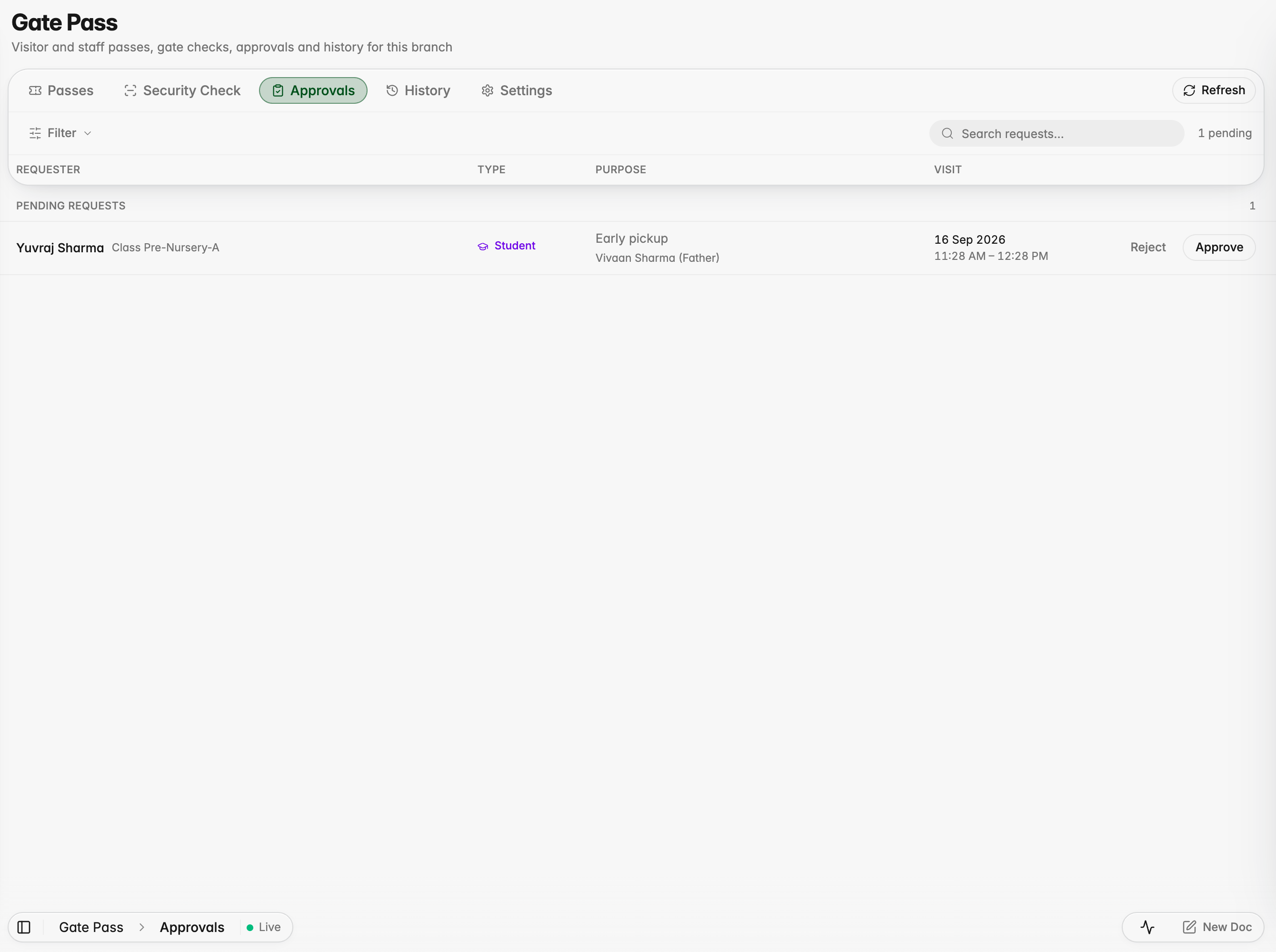
The class teacher approving a student's early pickup
Platform
Students can leave early or arrive late on a gate pass
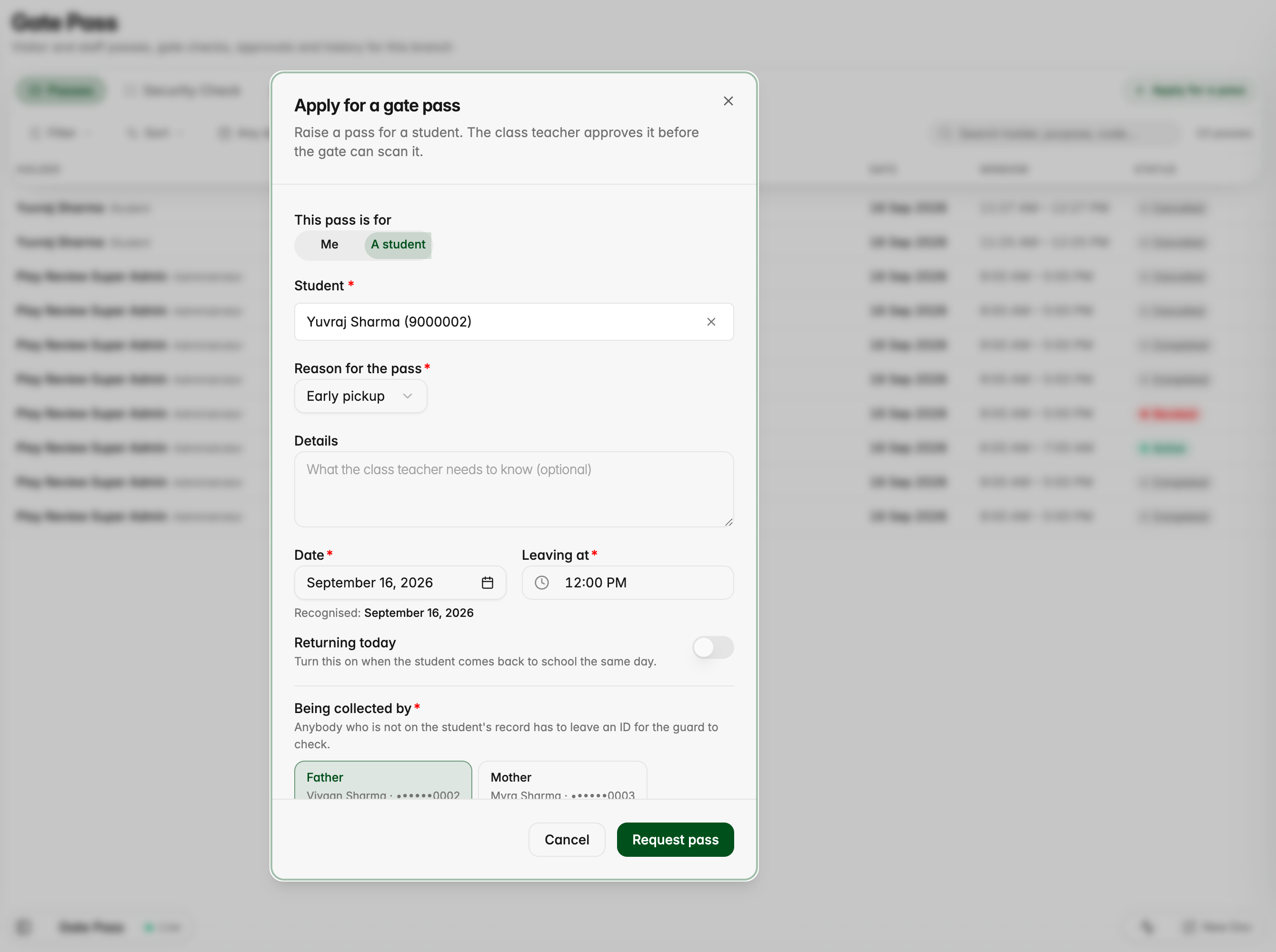
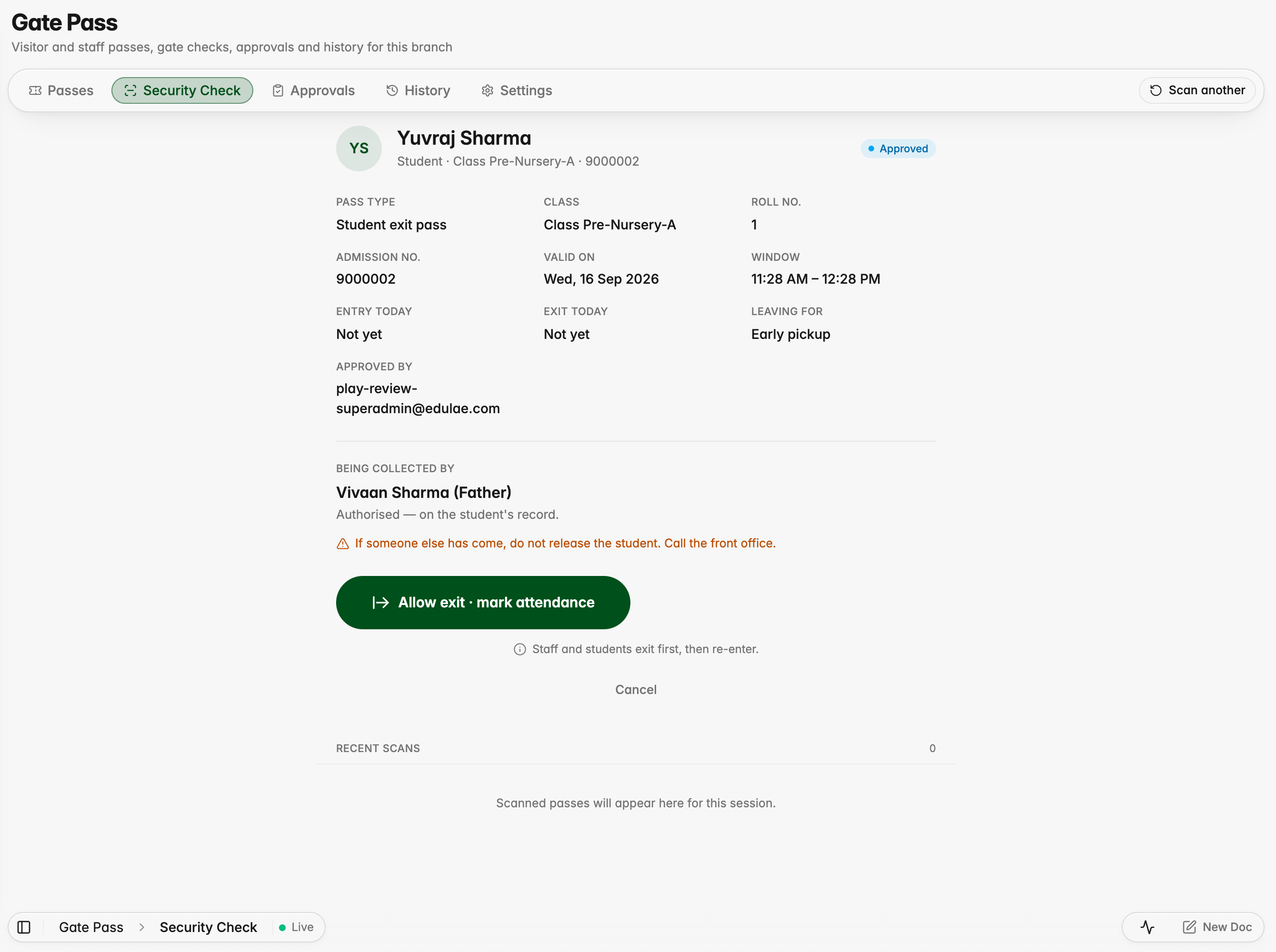
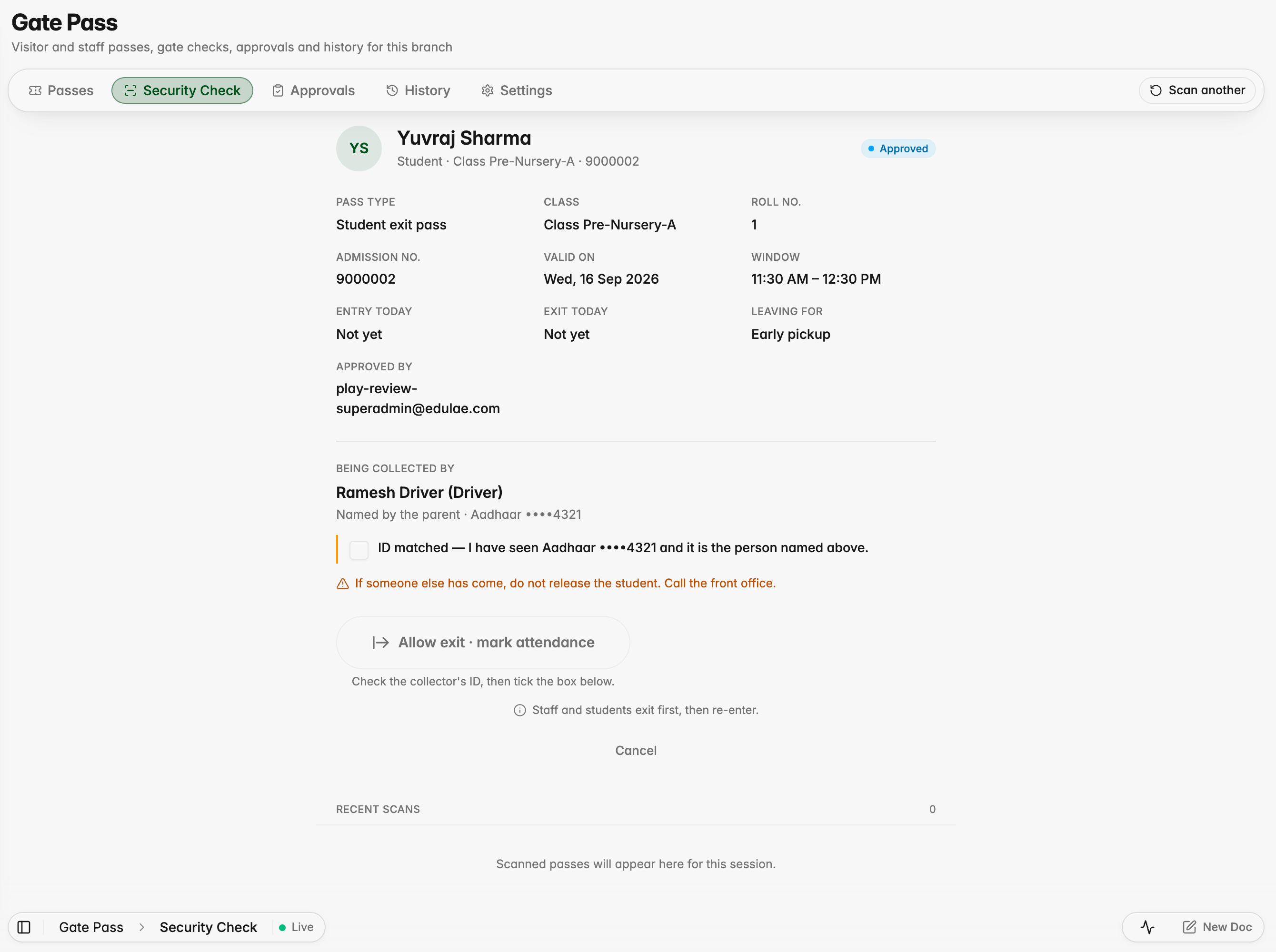
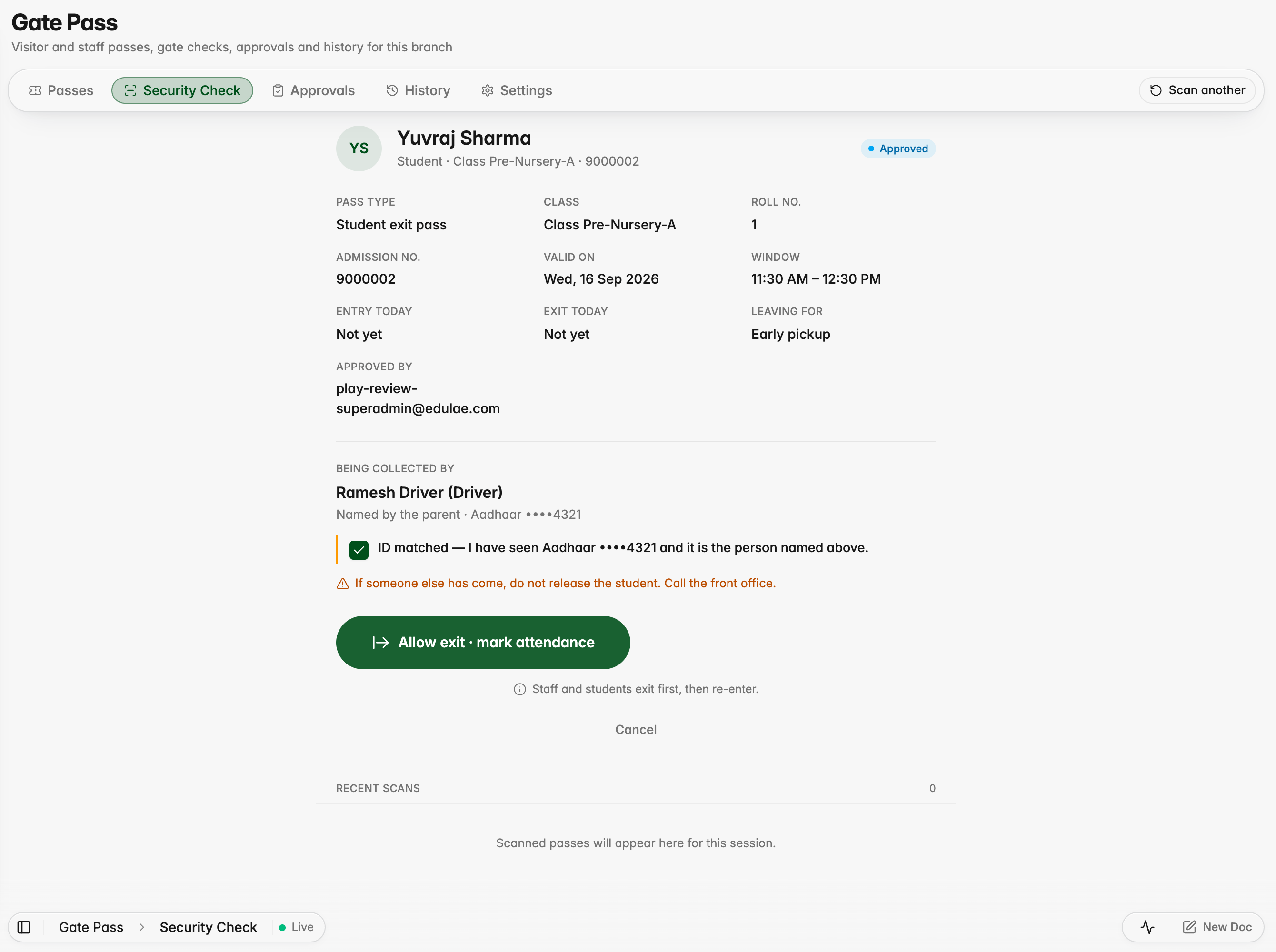
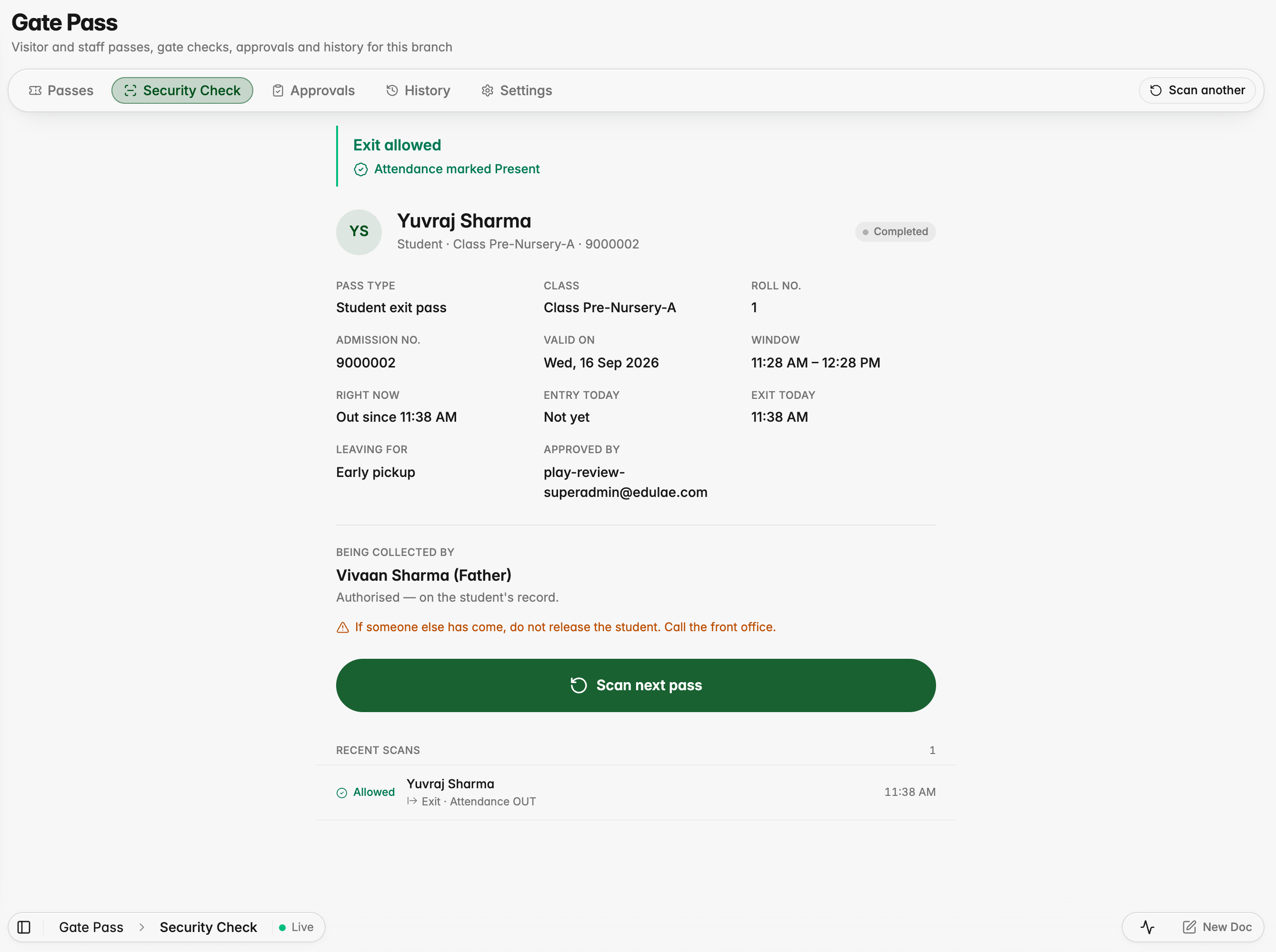
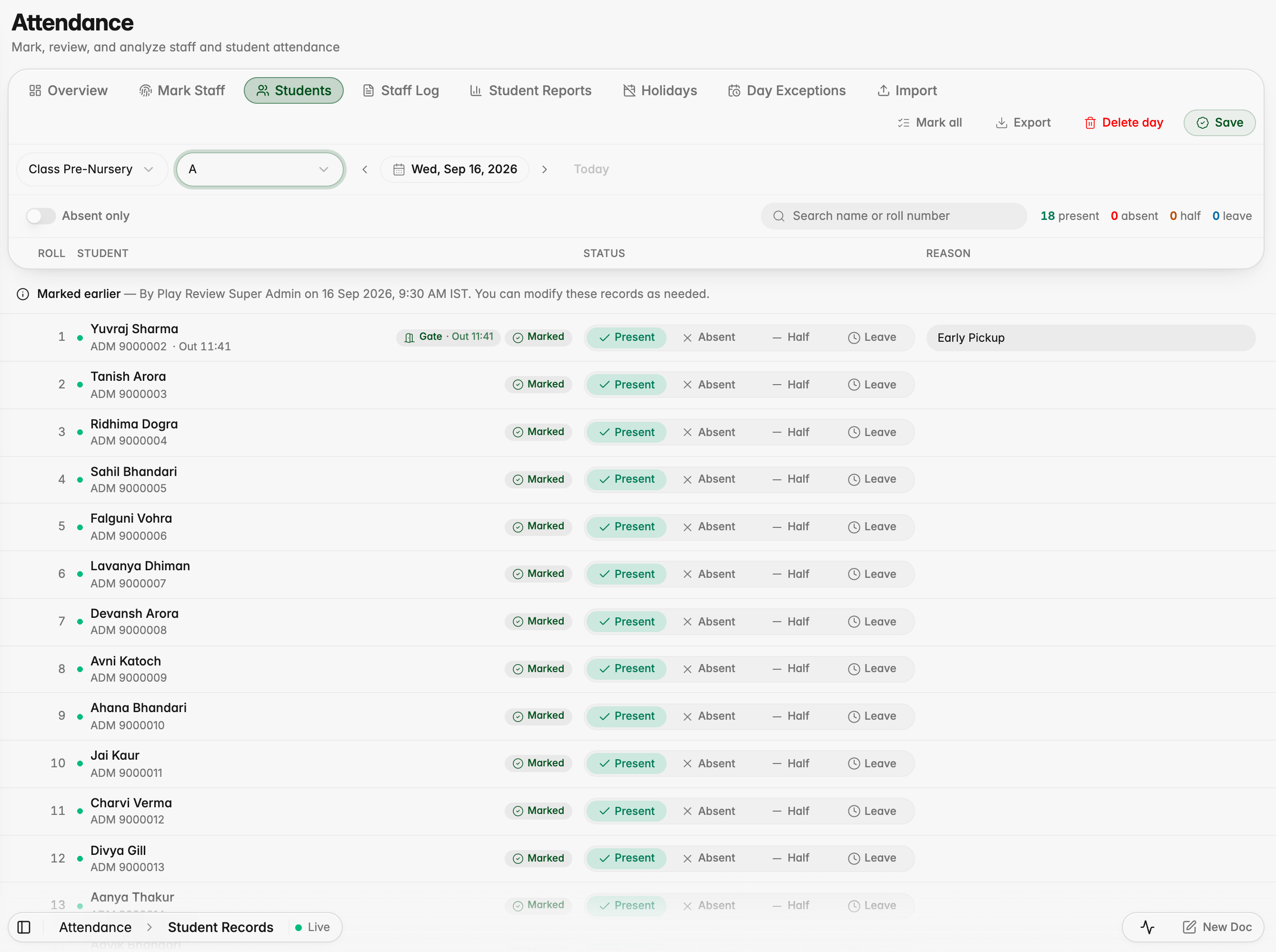
A parent or the front office can raise a pass for a student, the class teacher approves it, and the guard checks who is collecting the child before the exit is allowed. A parent on record is shown as authorised; anyone else must show ID. Attendance is updated on its own.
Raising a pass for a student, with the parents on record offered as pickup
At the gate, a parent on record is shown as authorised
Anyone else must show ID before the exit can be allowed
The guard confirms the ID and the exit unlocks
The exit is recorded and attendance is updated
The pass keeps the handover details
The register shows the gate exit and the time
Round trips, revoked passes and guard overrides
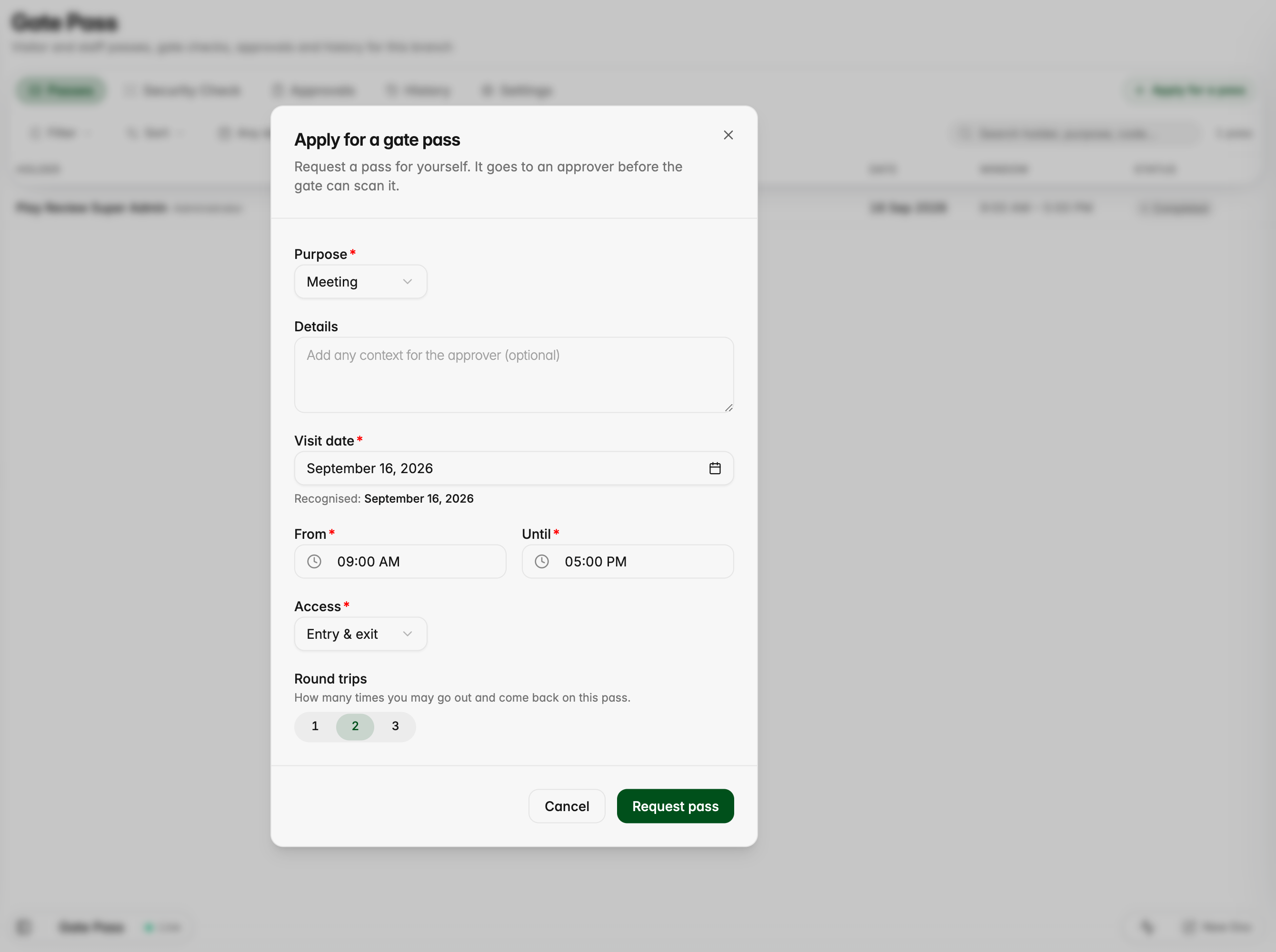
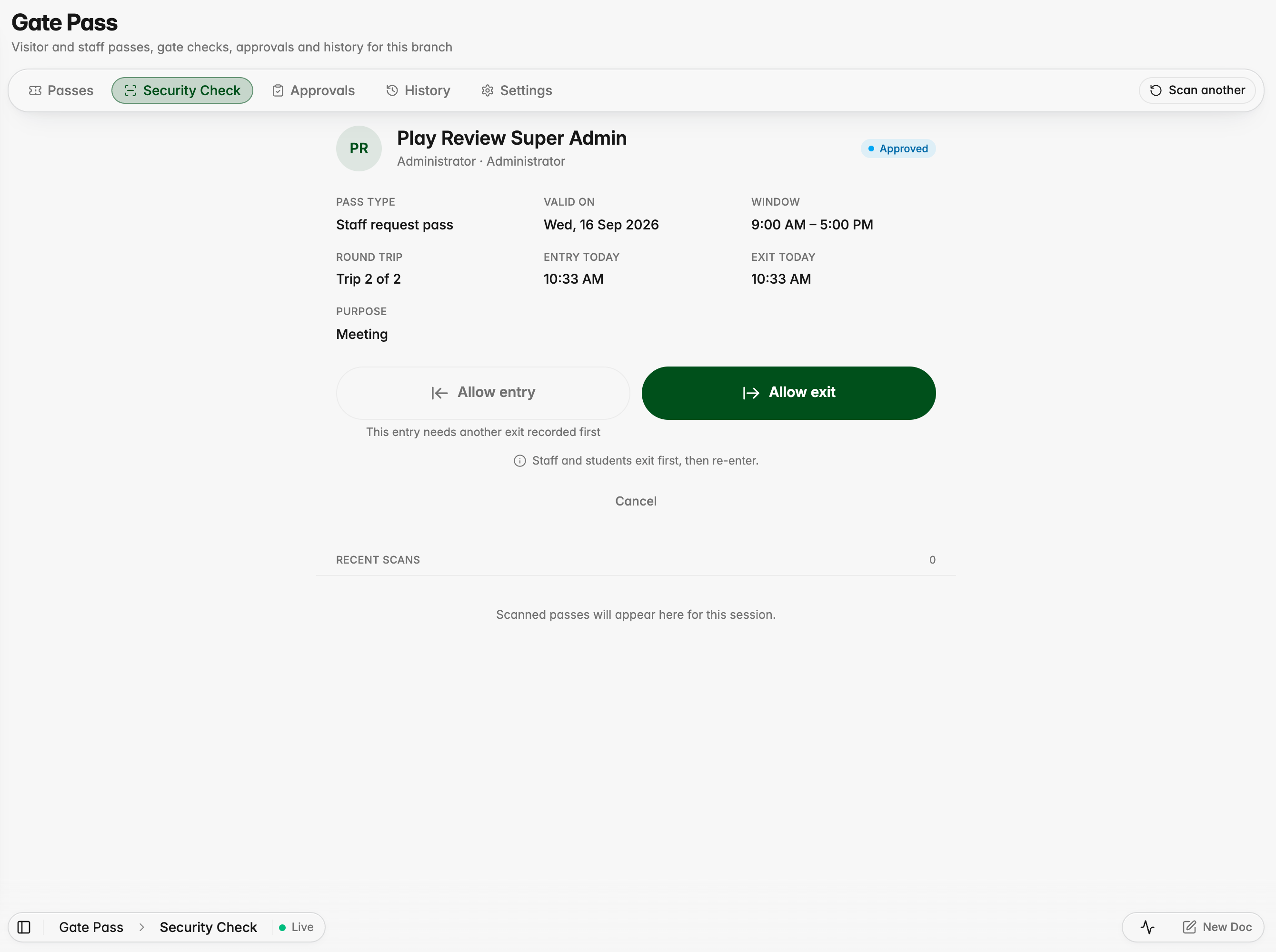
A pass can now allow more than one trip out and back in a day, and an approver can revoke a pass with a reason that the holder sees. When someone must be let through outside their window, the guard records an override with a reason and attendance is still marked.
Applying for a pass now lets you choose how many round trips it allows
The guard sees which trip the person is on
Outside the window, the guard can override with a reason
The reason is required and stored on the movement
The override is recorded and attendance is still punched
An approver revokes a pass and the holder is told why
History shows revoked, active, completed and expired passes
Visitors choose their type and answer only what applies
Visitors pick what kind of visitor they are and see just the questions for that type, and the person they came to see approves with one tap. The front desk gets a watchlist, walk-in registration and a simple gate log for deliveries and couriers. Forms can show a follow-up question only when an earlier answer calls for it.
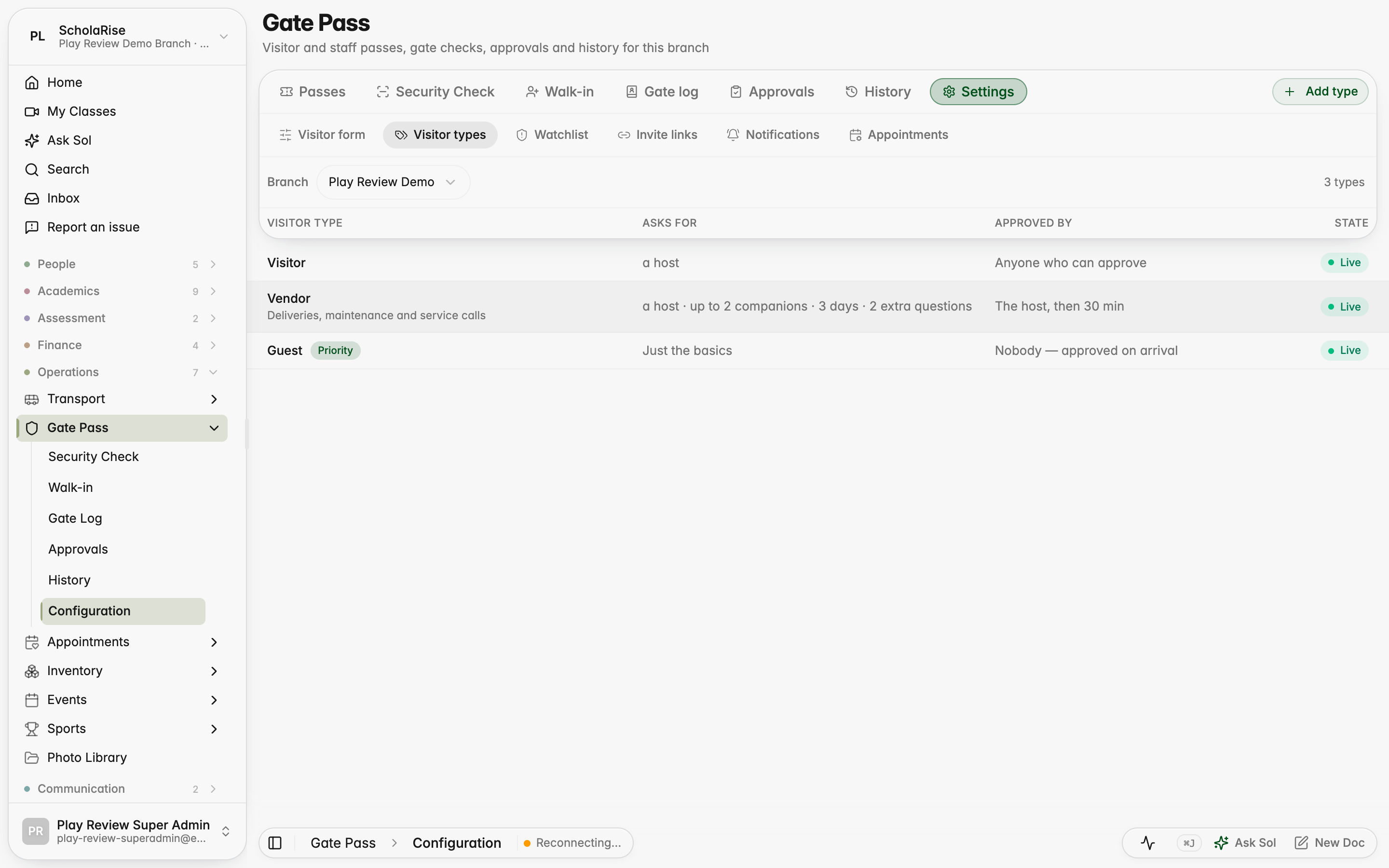
Visitor types, each with its own rules
Rules on the left, the questions for that visitor type on the right
People to flag or turn away, by phone, email, vehicle or name
The visitor form on a phone
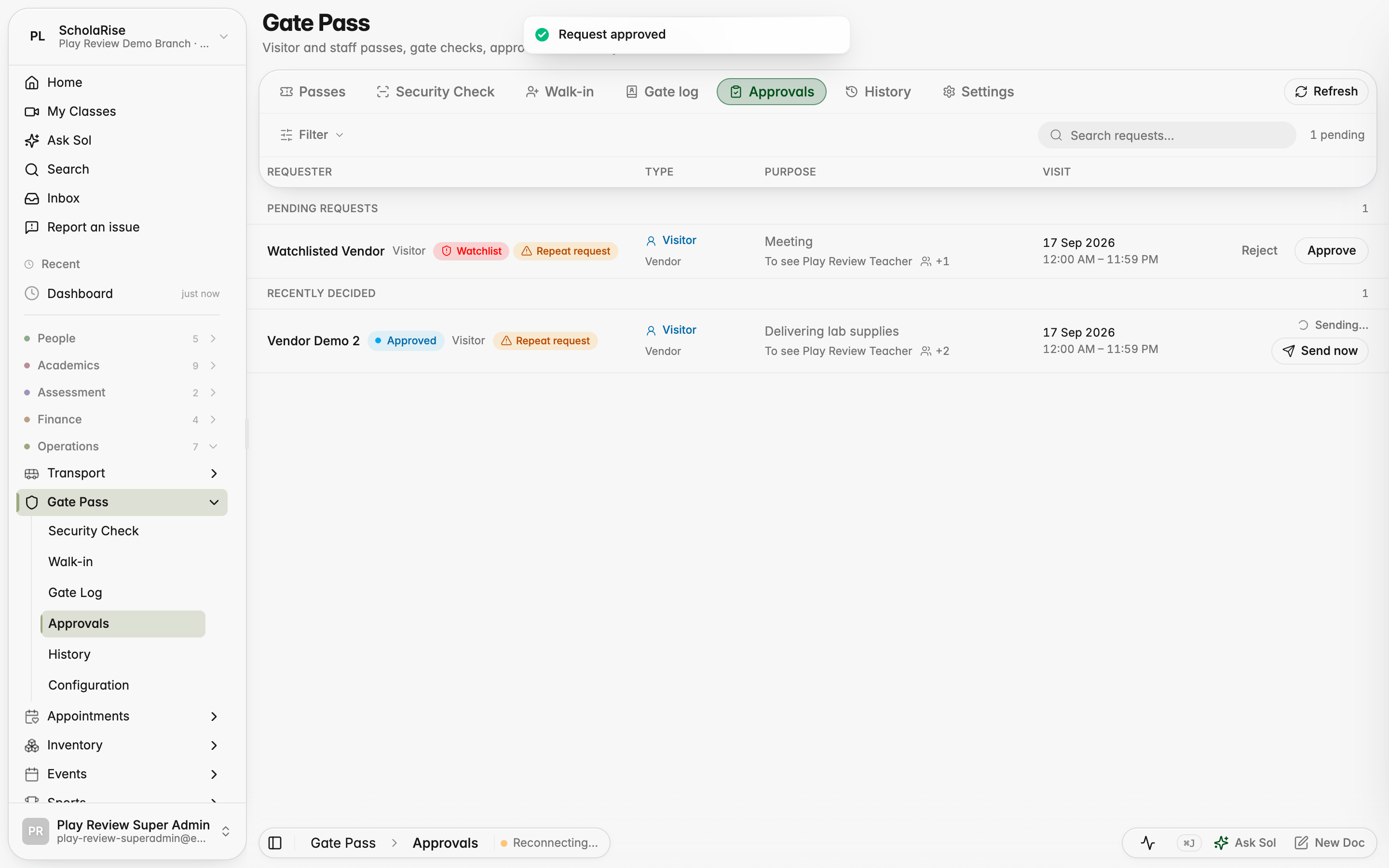
Requests show who they are for and anything worth a second look
Registering a walk-in at the desk
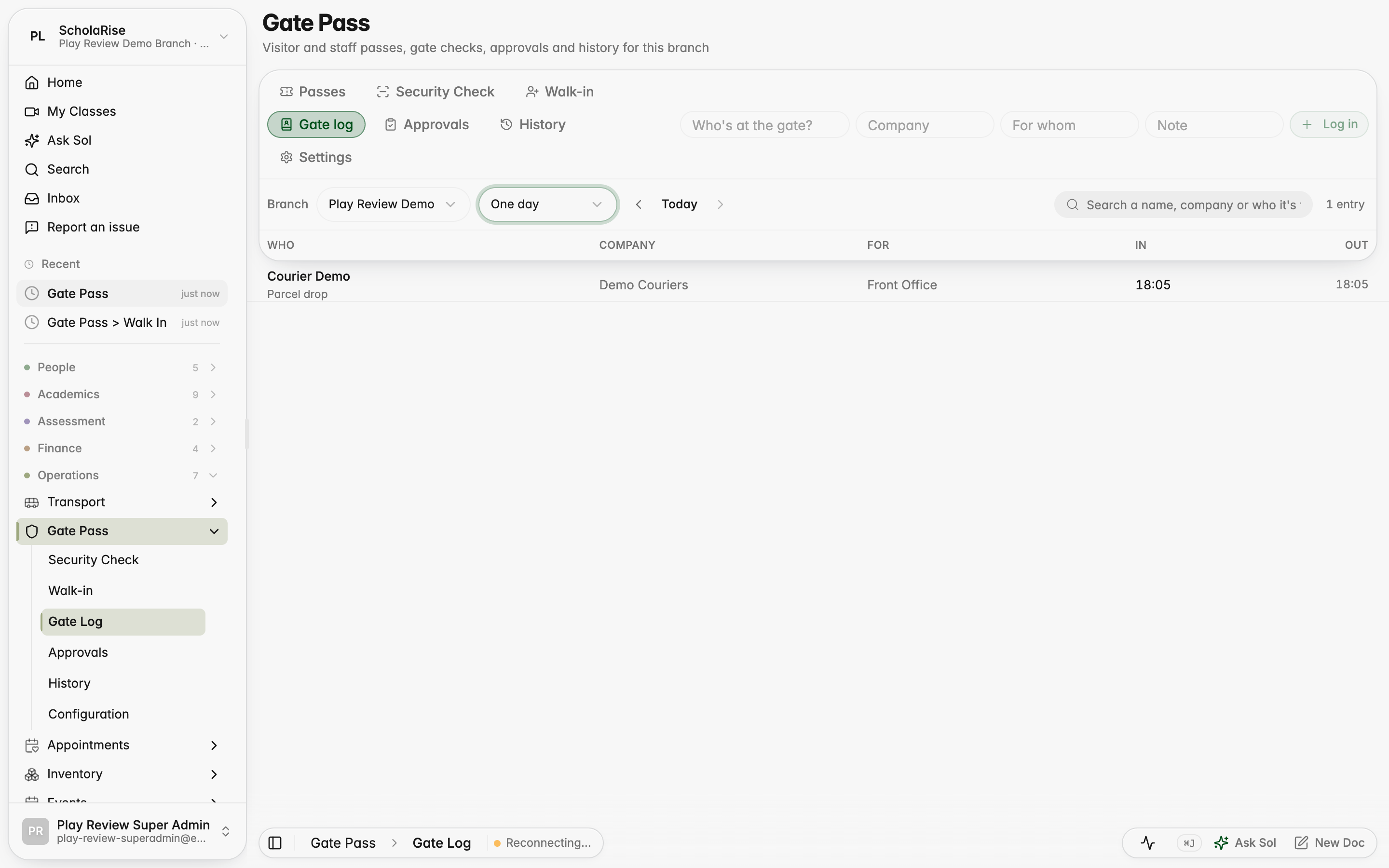
A simple log for deliveries and couriers
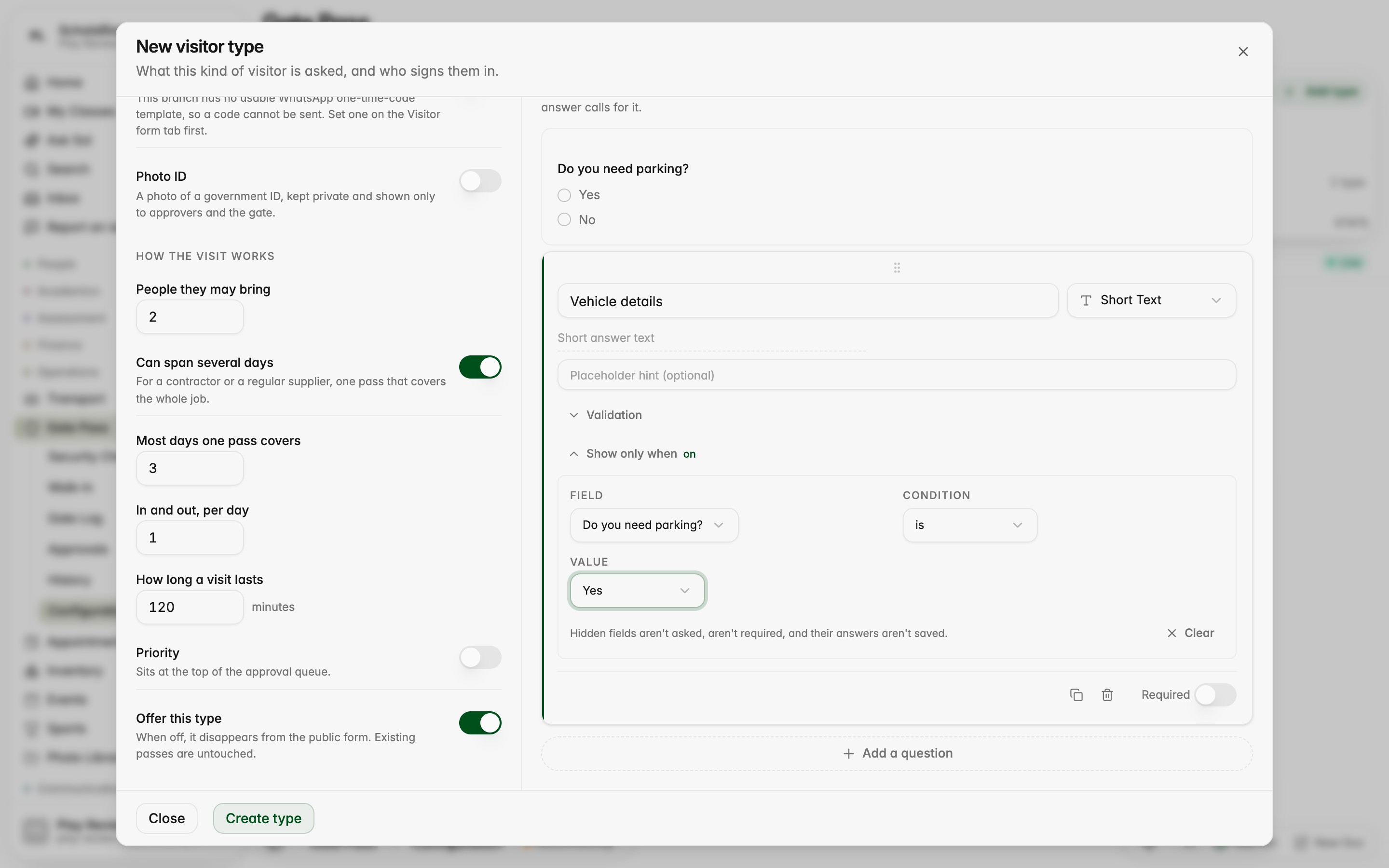
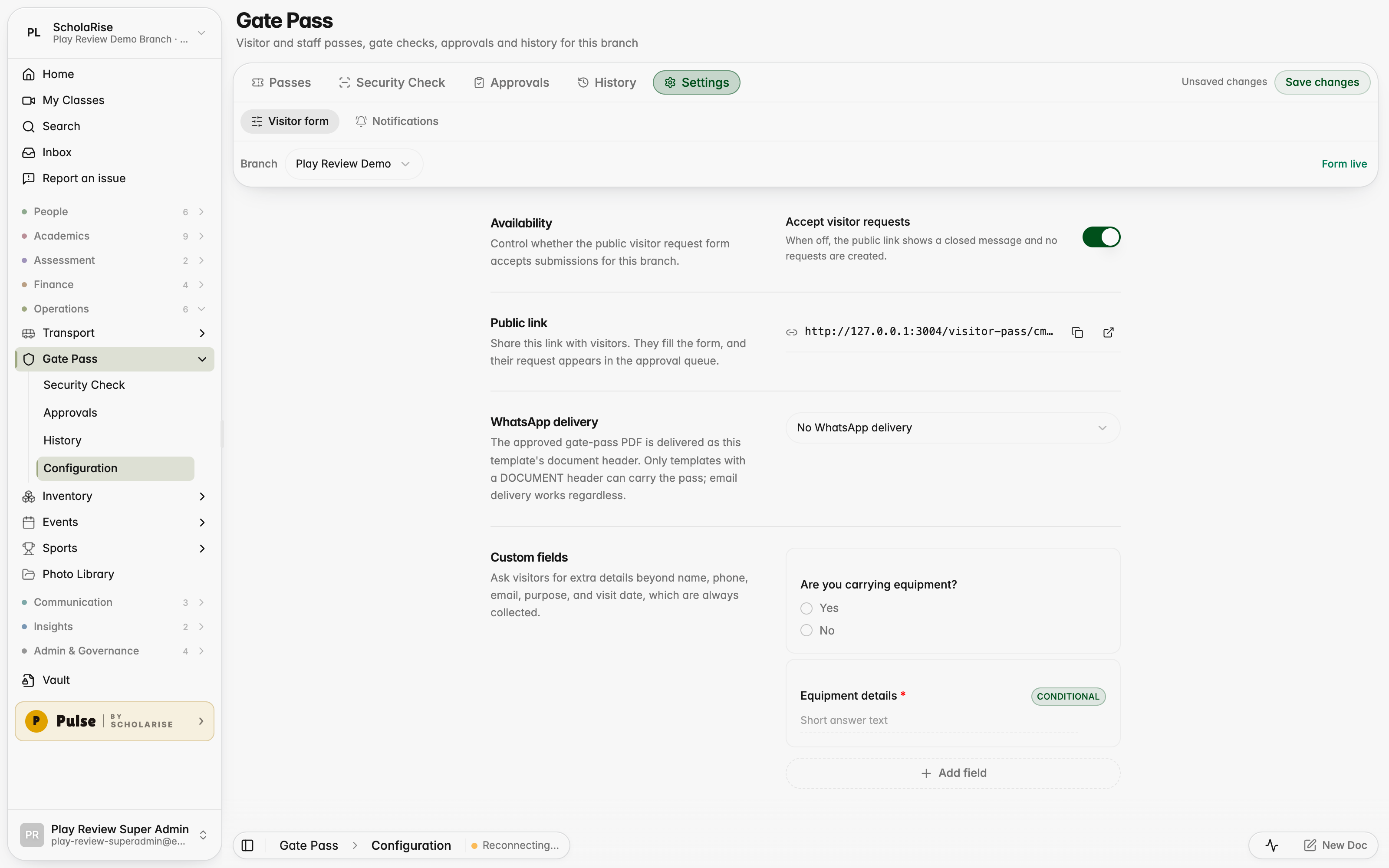
A follow-up question marked Conditional in the visitor form settings
The visitor form before answering, with the follow-up hidden
Answering Yes reveals the follow-up question
Personal invitation links
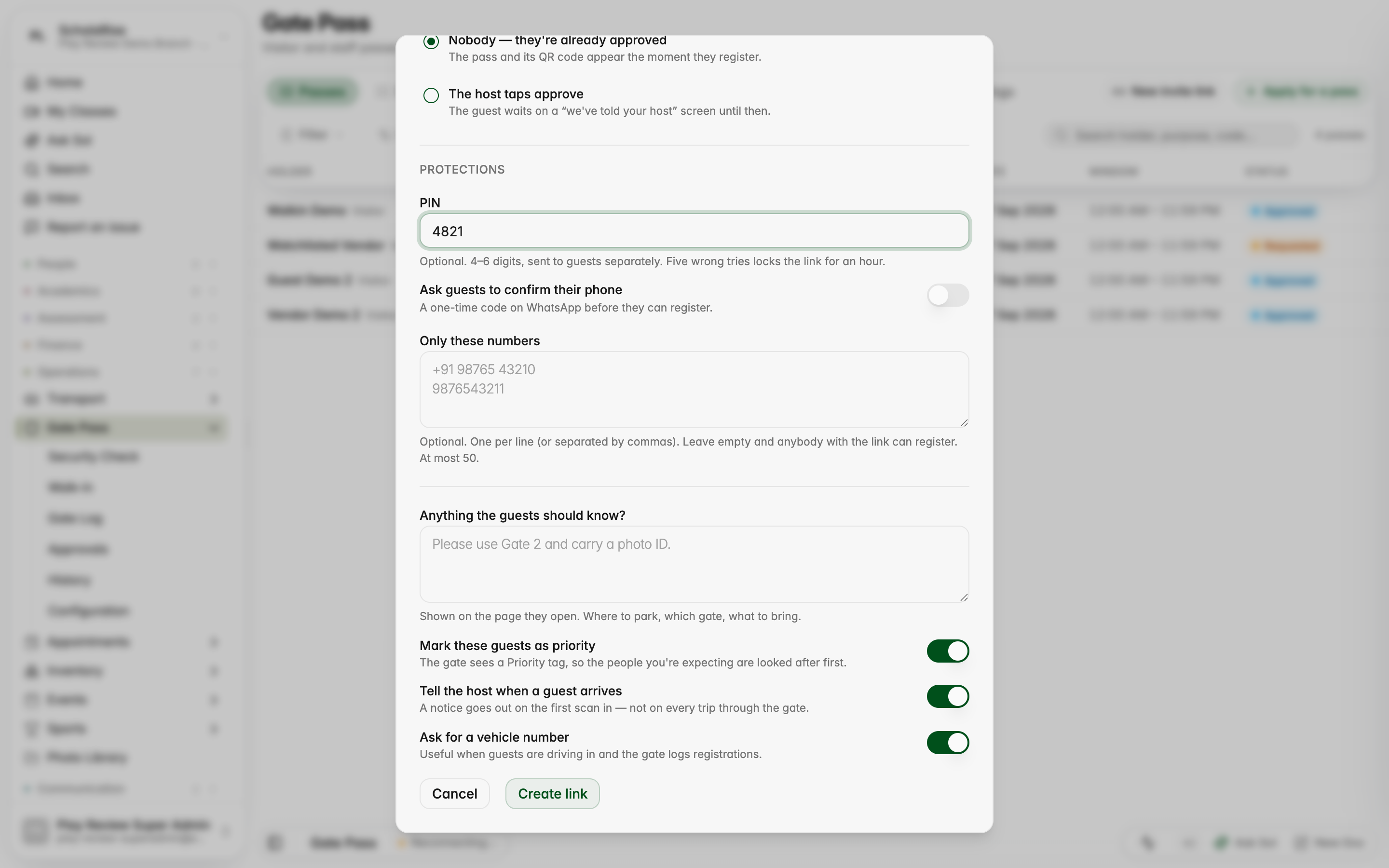
Staff can create an invitation link for an occasion and share it directly. Each guest signs in on their phone and receives a pass, with an optional PIN, a guest limit and approval by the host if you want it.
Creating an invitation link for an occasion
The link is shown once, ready to copy or share
What a guest sees when they open the link
The guest's pass, ready to show at the gate
Every link with how many guests have opened and registered
The guest list for one occasion, with the option to withdraw the link
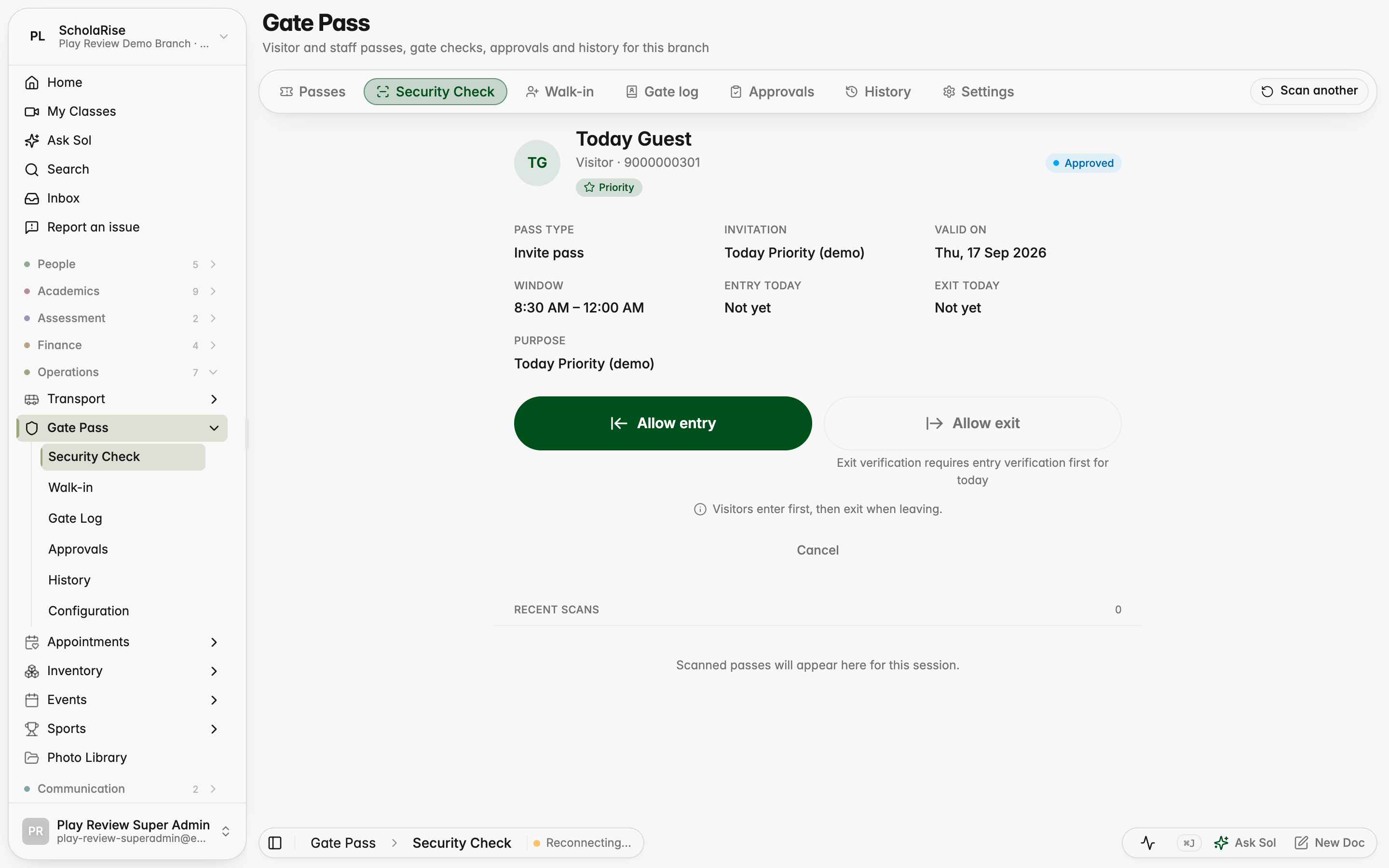
The guard sees the occasion and the priority tag
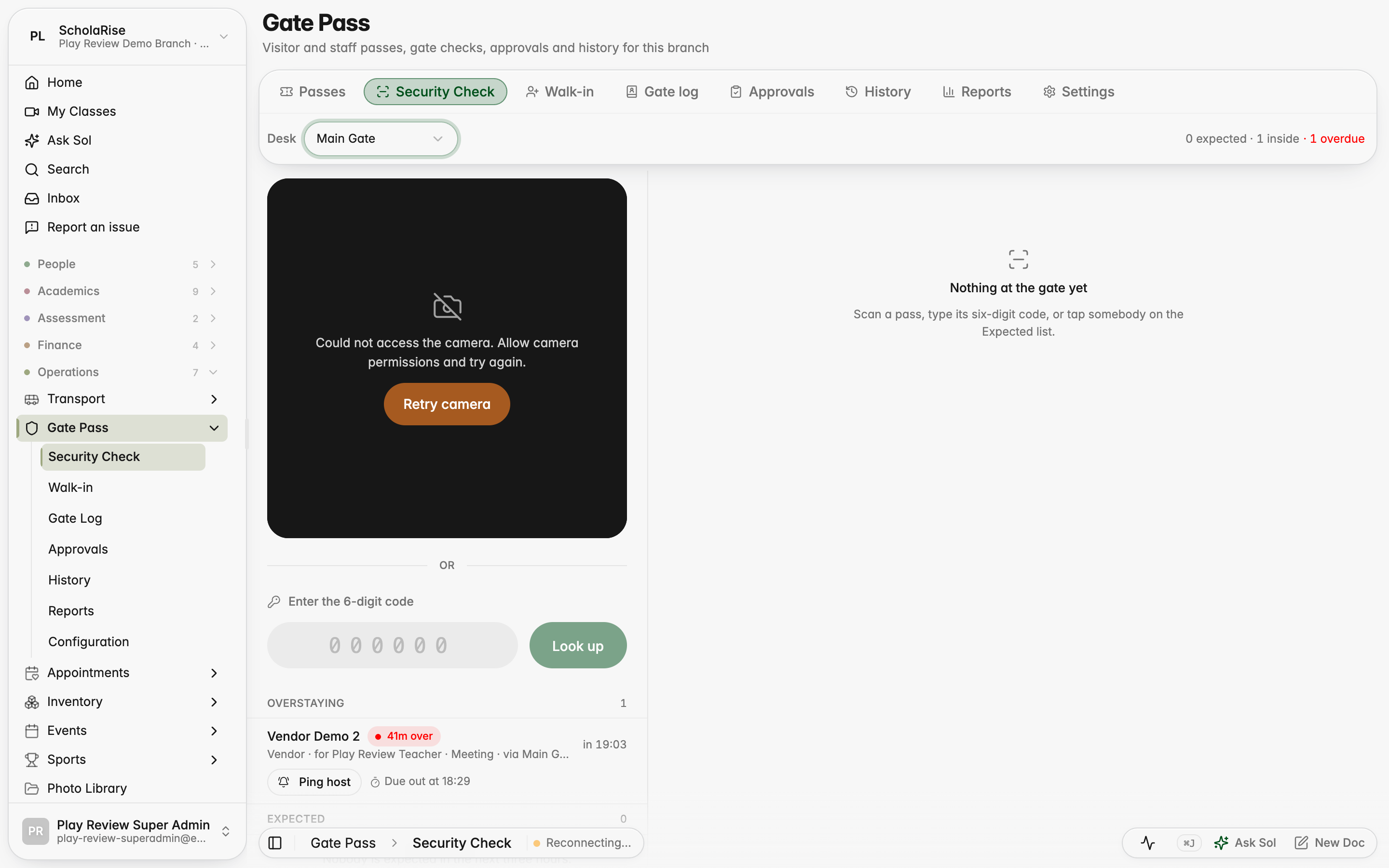
The security desk sees who is expected, inside and overstaying
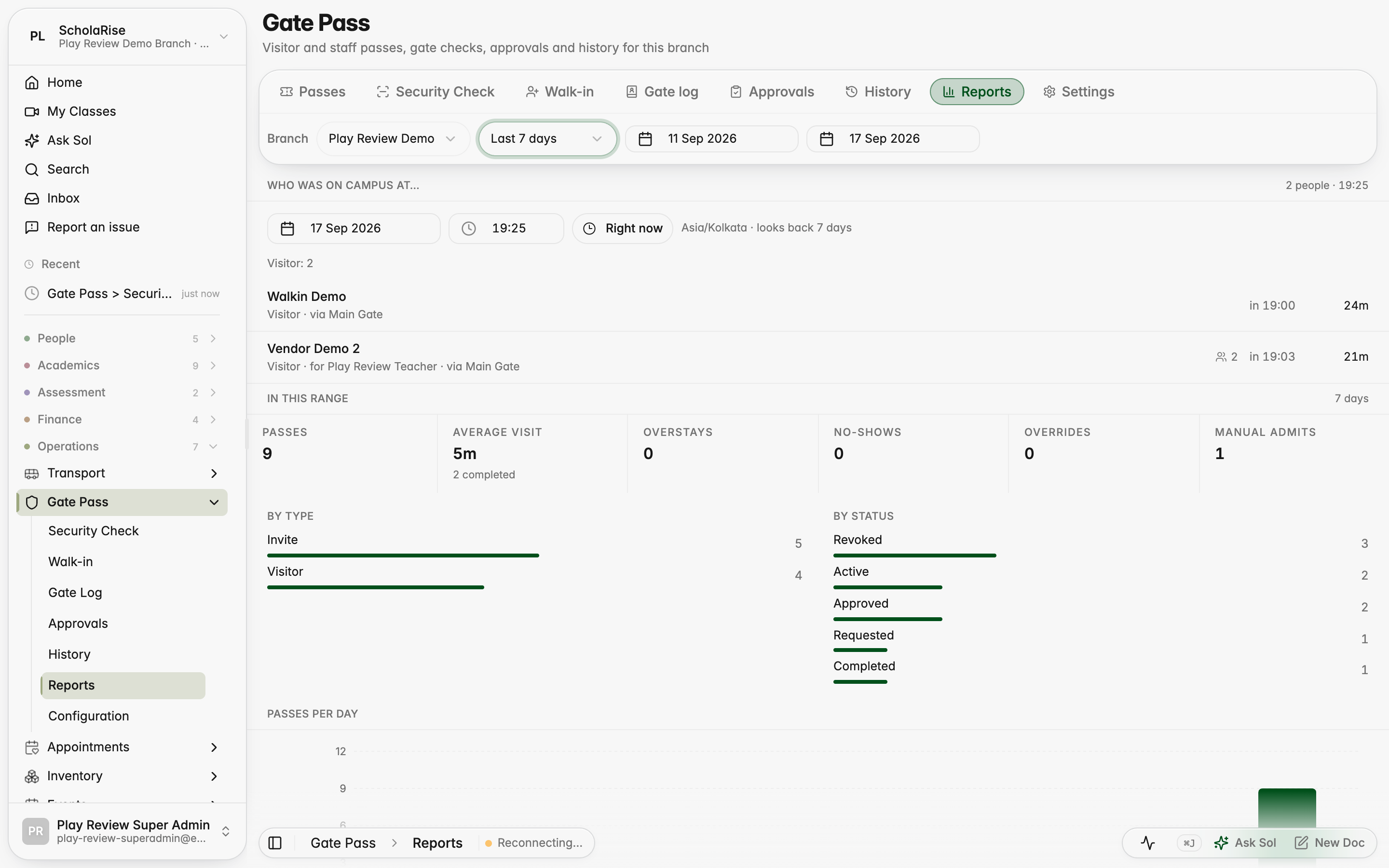
Guards can admit an expected visitor from the list, see companions and badges, and nudge the host of anyone who has overstayed. The office gets gate pass history, exports and reports on who was on campus at a given time.
Desks and gate rules for the branch
Admitting a visitor with companions and a badge
Admitting an expected visitor by confirming their phone
Visitors who have overstayed, with a nudge to their host
Searchable gate pass history with export
Who was on campus at a given time, and the week in numbers
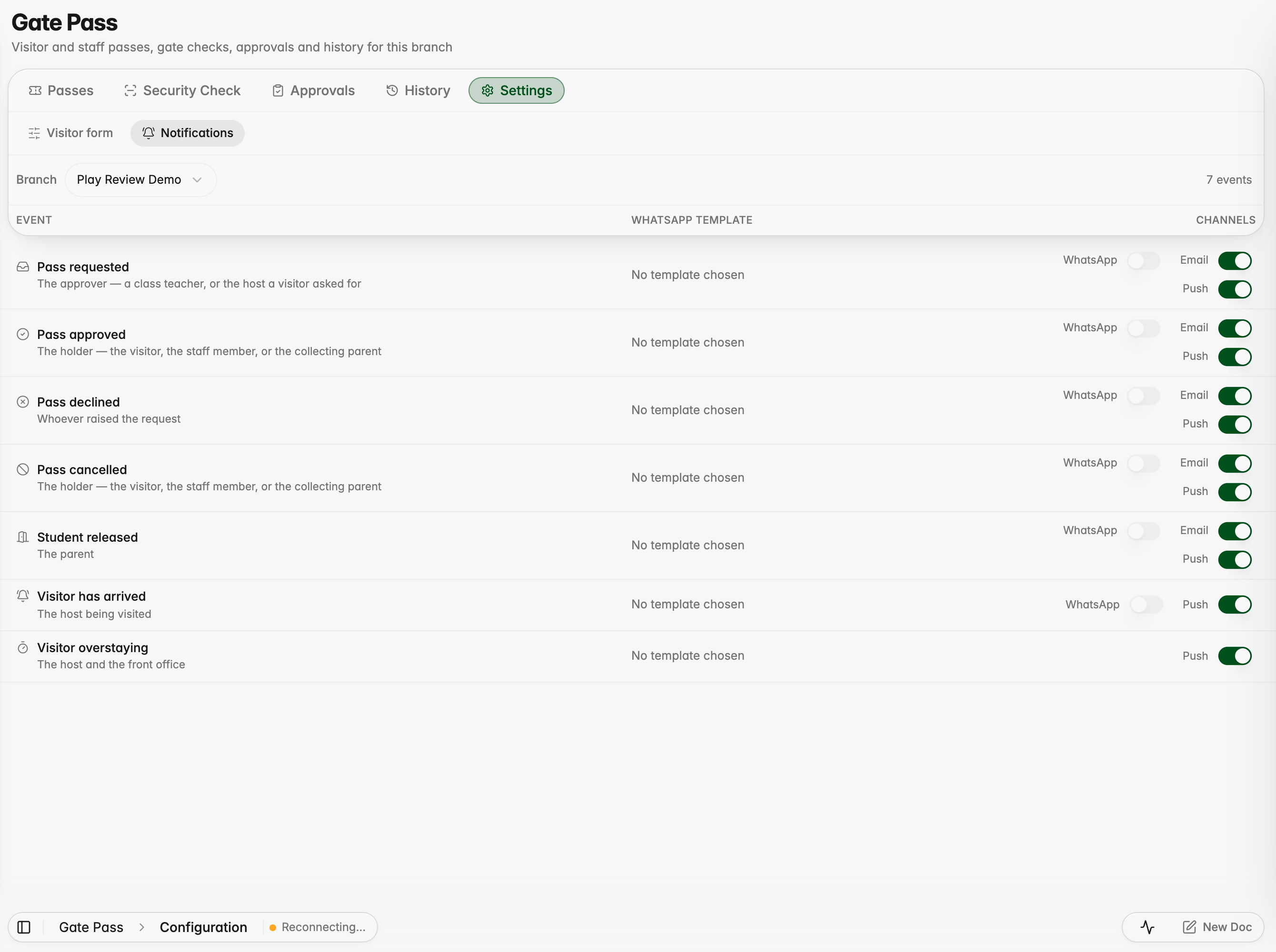
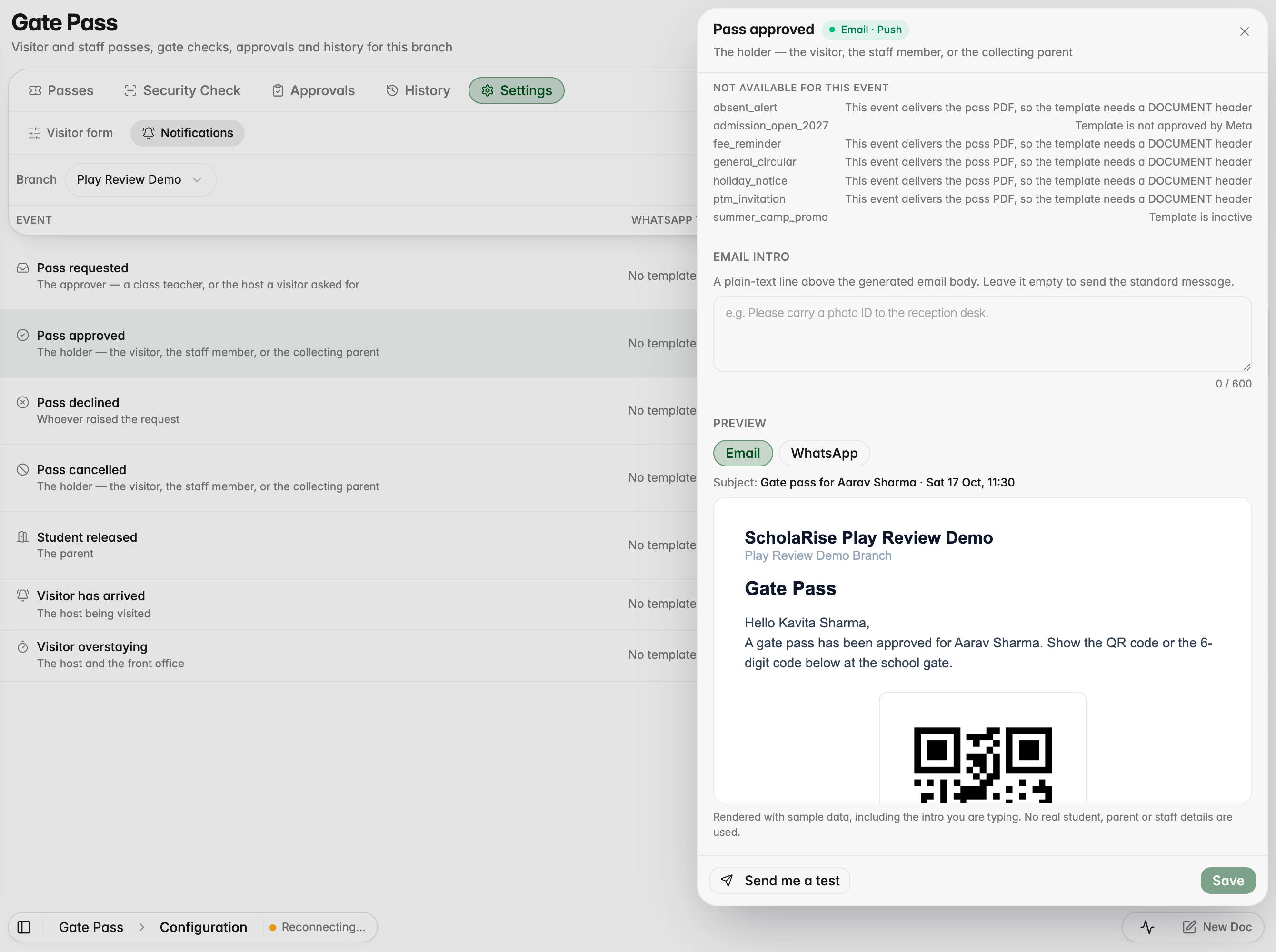
Choose how each gate pass event notifies people
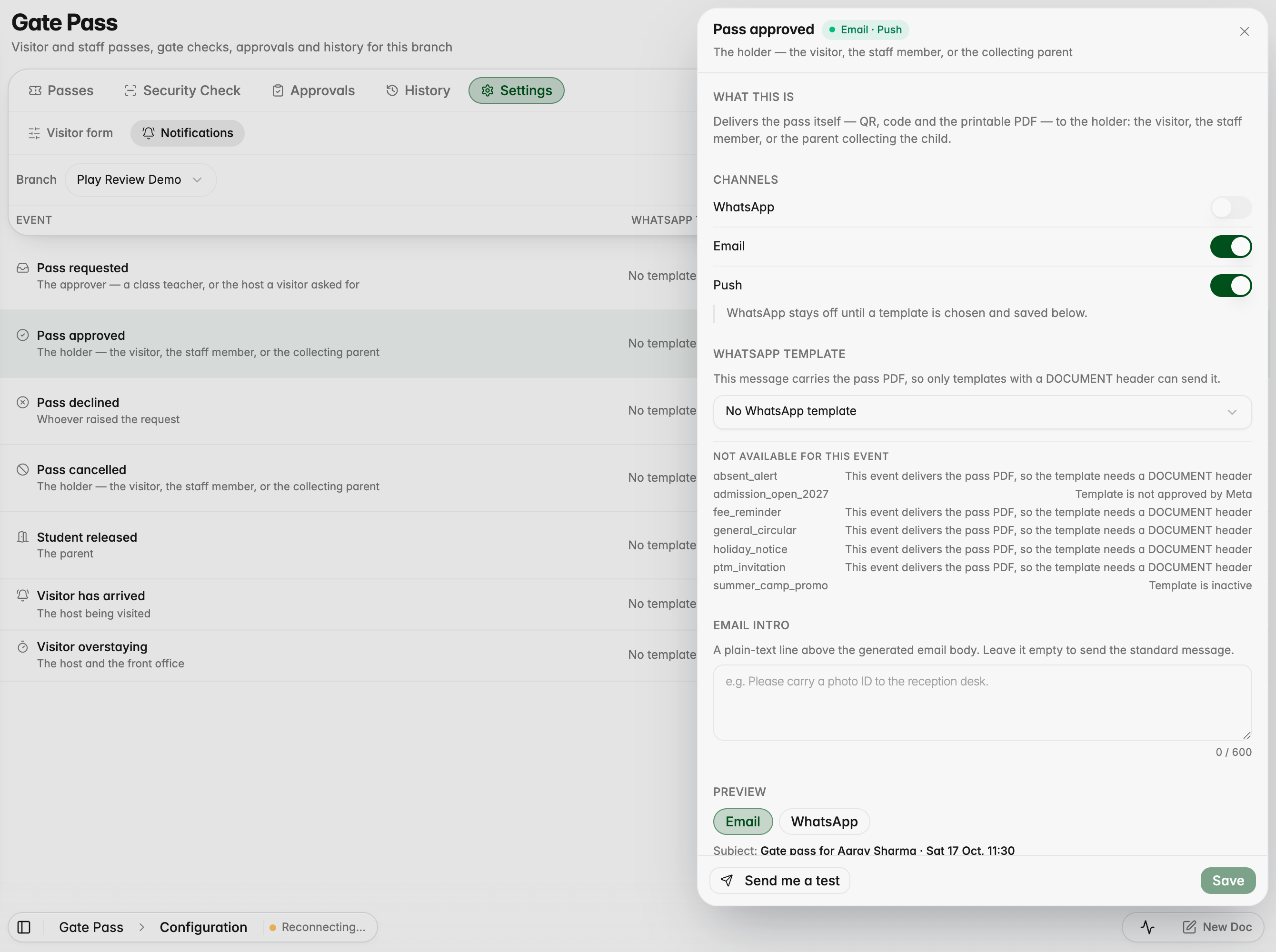
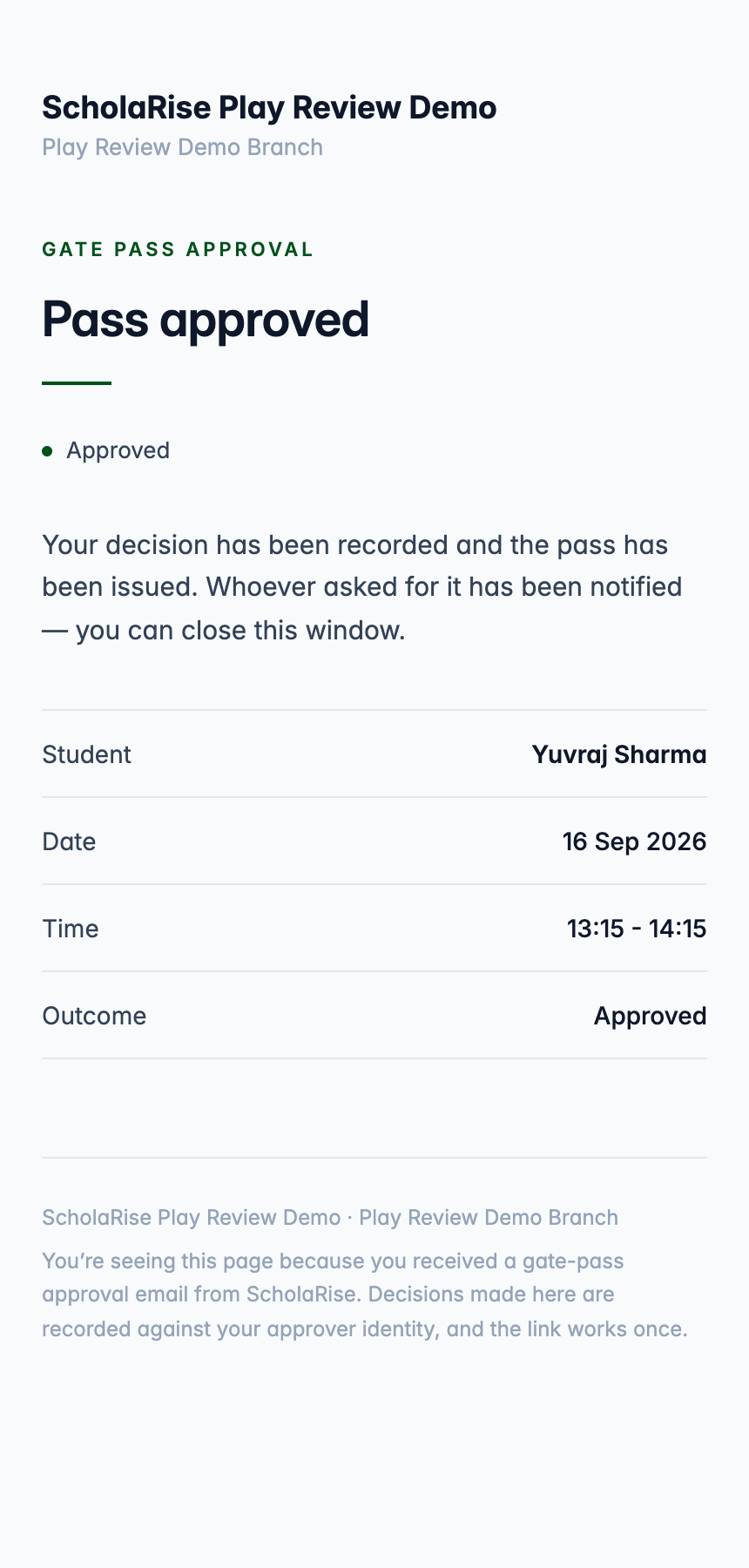
Gate pass notifications now have one place for every event: which channels are used, which WhatsApp template goes out and what the email says, with a live preview. Approvers can approve or decline straight from the email.
Every gate pass event with its channels in one place
Choosing the template, with the reason a template cannot be used
The email exactly as it will be sent
Approving a request straight from the email, on a phone
The decision is recorded and the link stops working
Parents can book a meeting and are expected at the gate
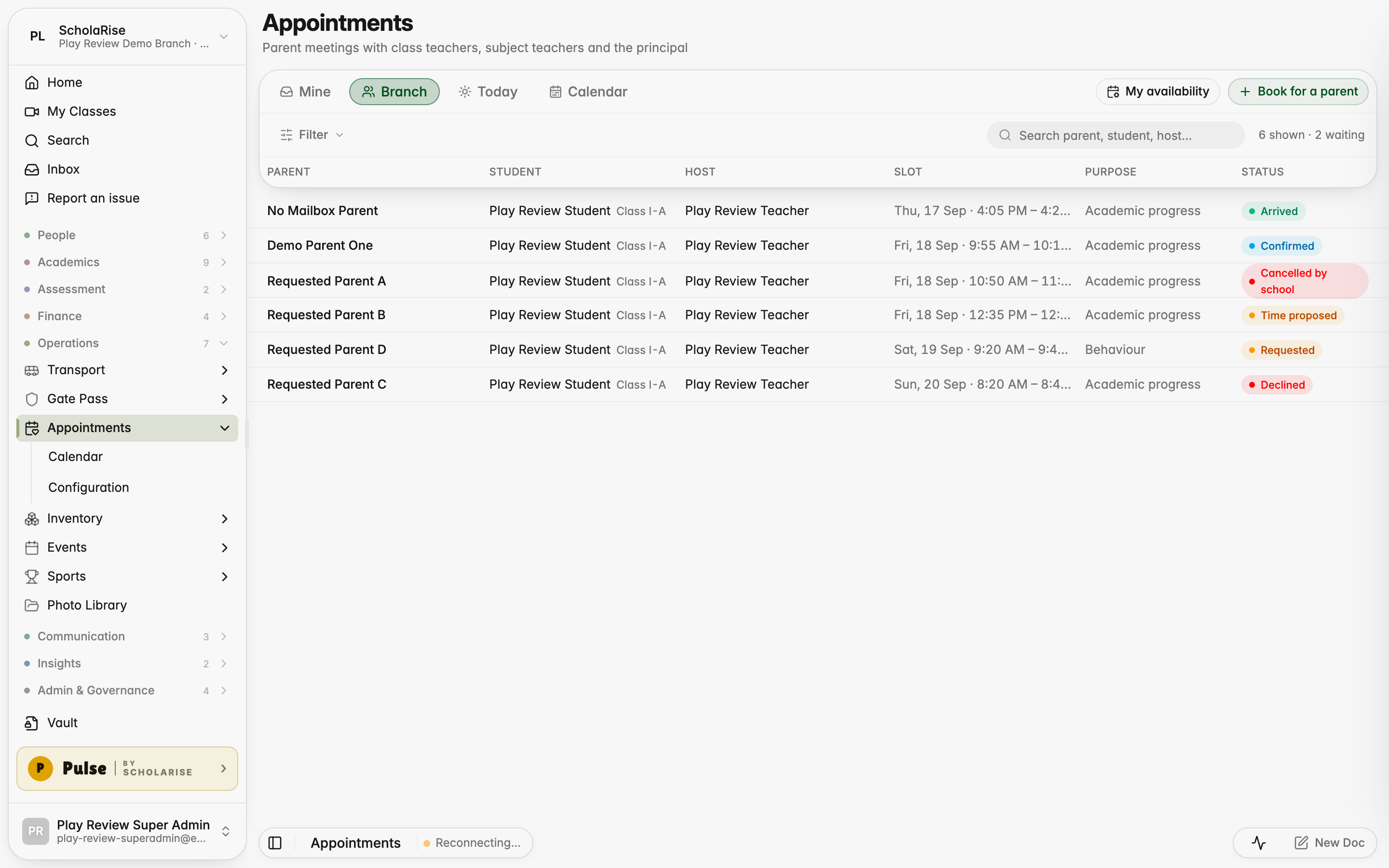
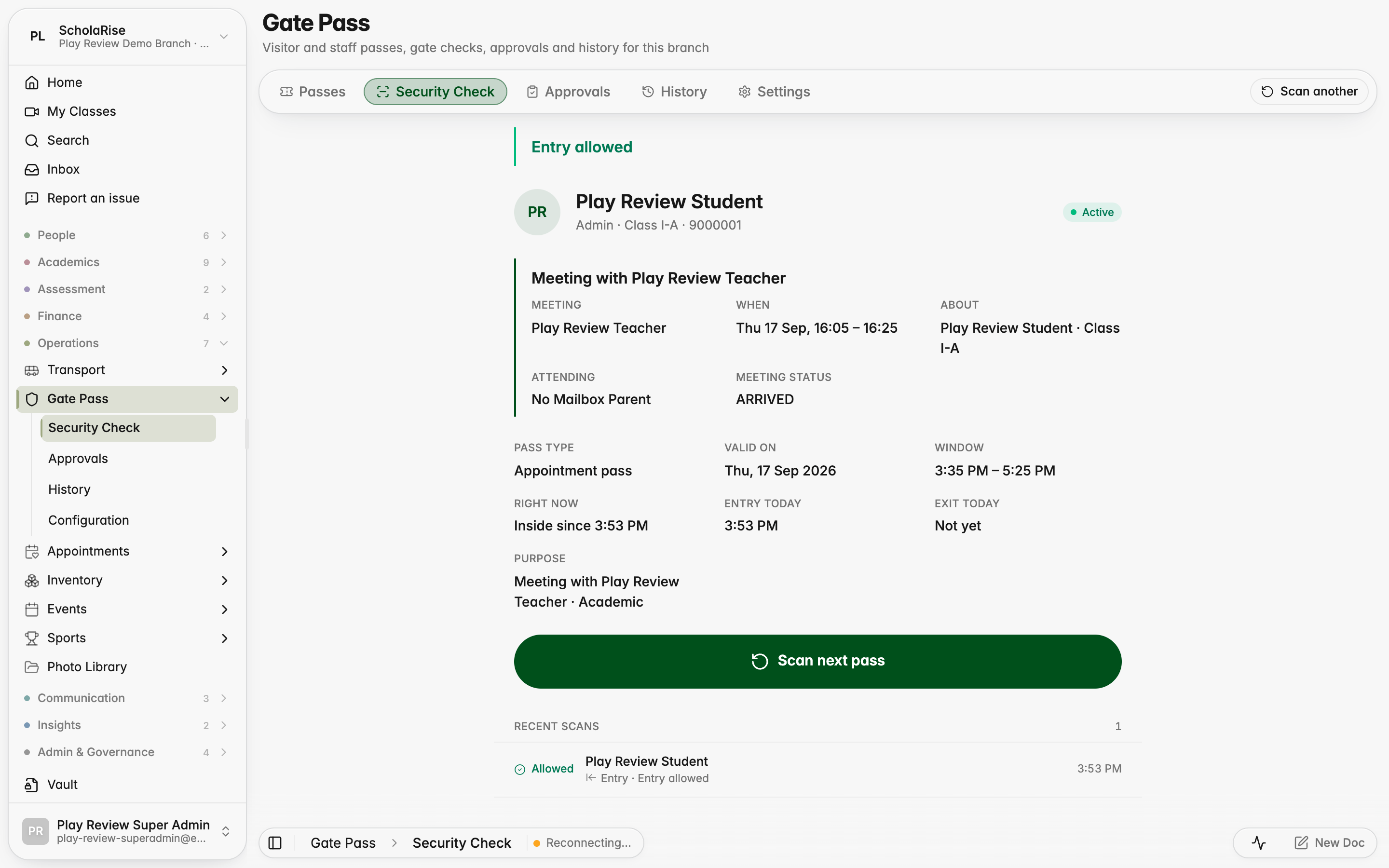
Parents can ask for a meeting with a class teacher, a subject teacher or the principal, choosing from free times taken from the teacher's timetable. Once the school confirms, a gate pass is sent automatically, and the guard sees who the parent is meeting when it is scanned.
Every meeting request for the branch in one place
Booking for a parent, with free times taken from the teacher's timetable
A confirmed meeting with its gate pass and history
The week's meetings on a calendar
The guard sees who the parent is meeting when the pass is scanned
The front office setting meeting hours on a teacher's behalf
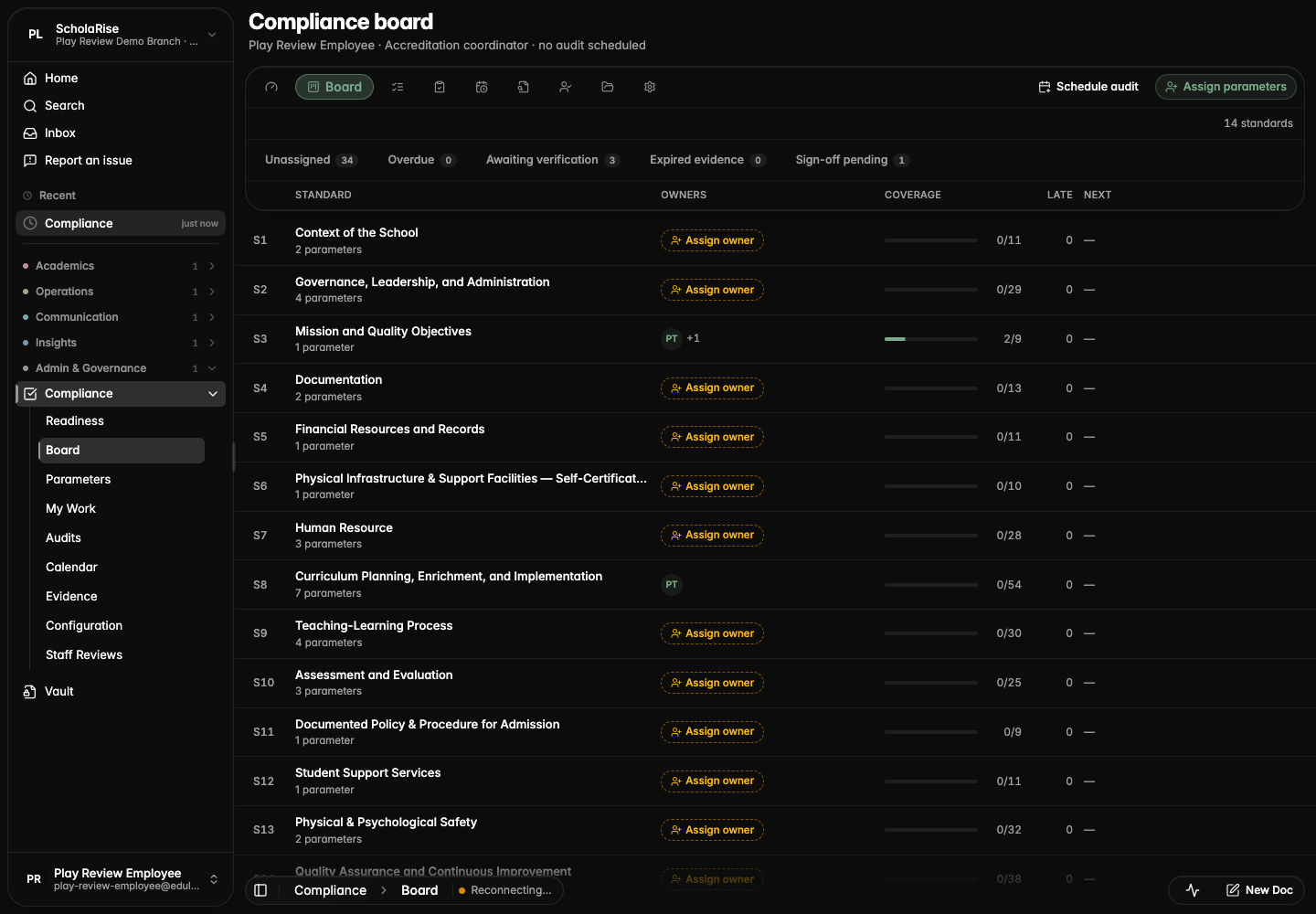
Compliance opens to your role
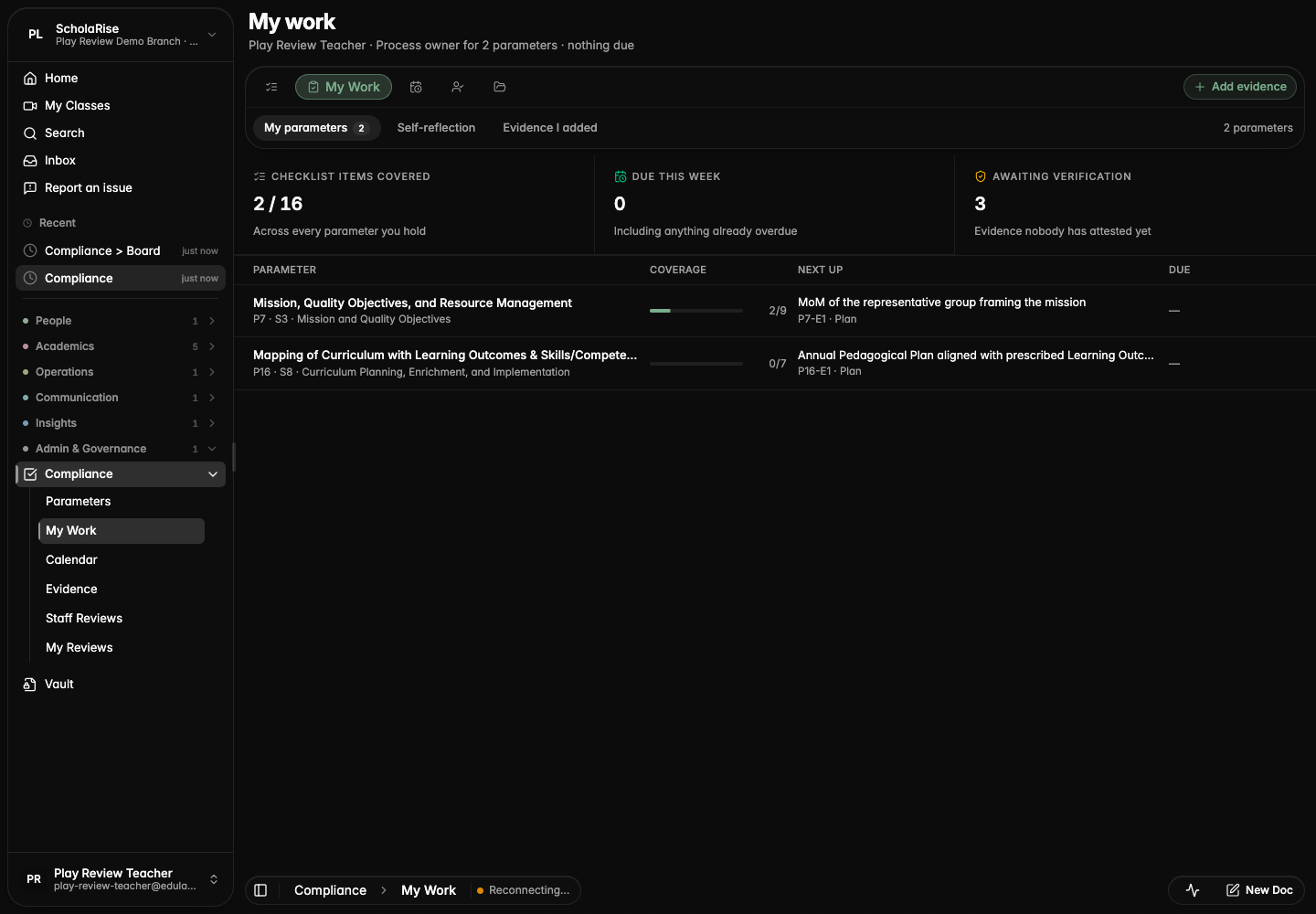
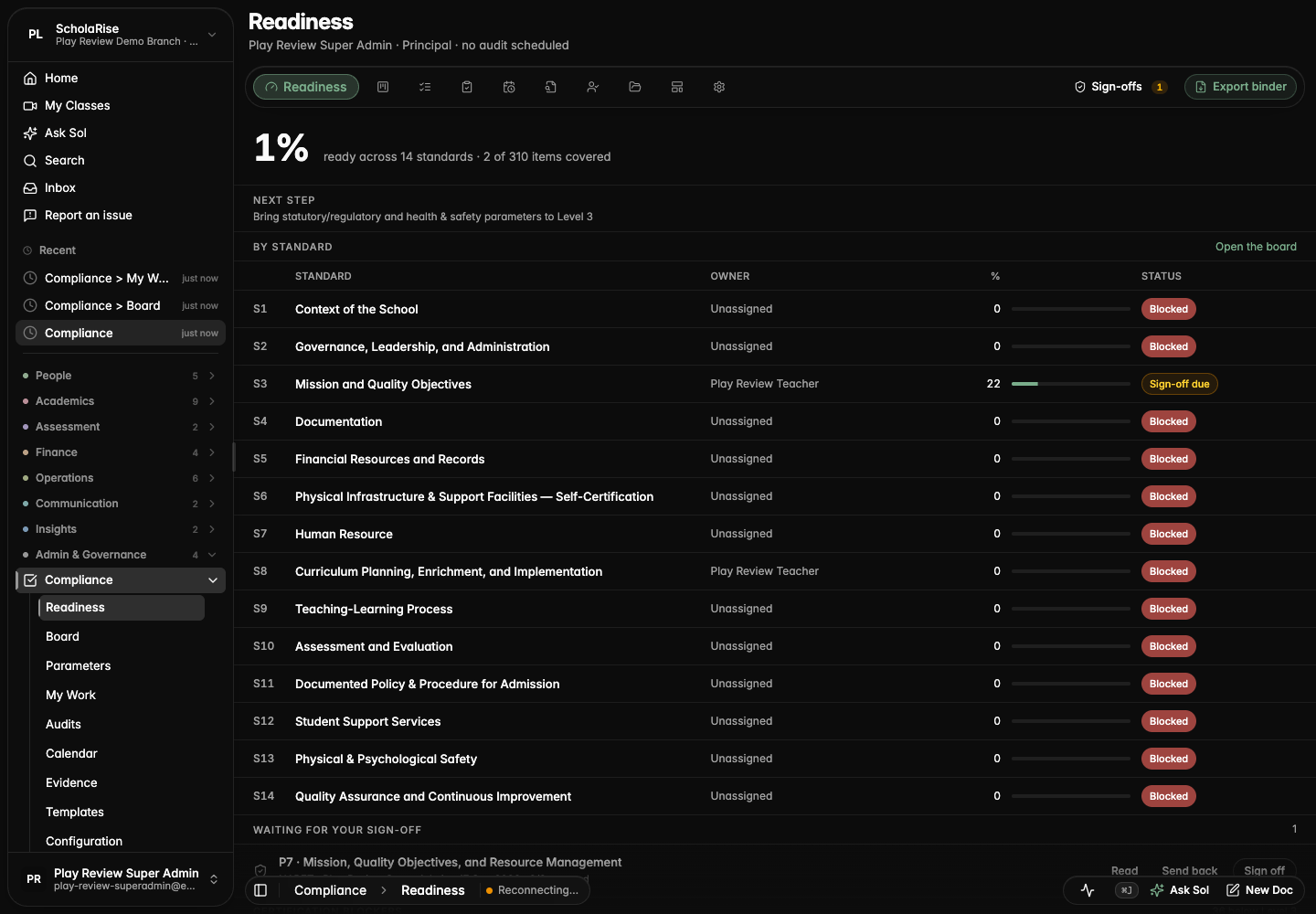
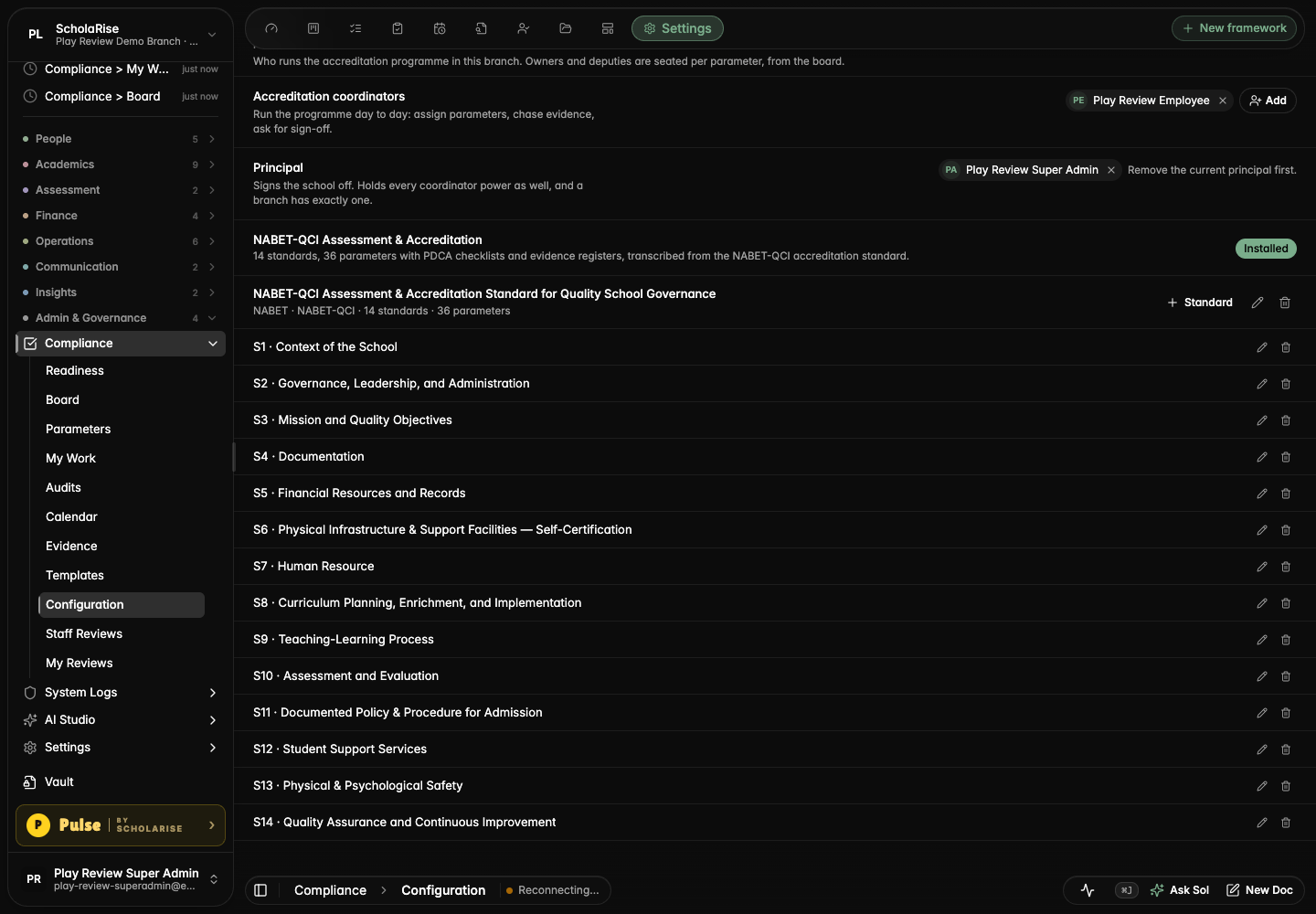
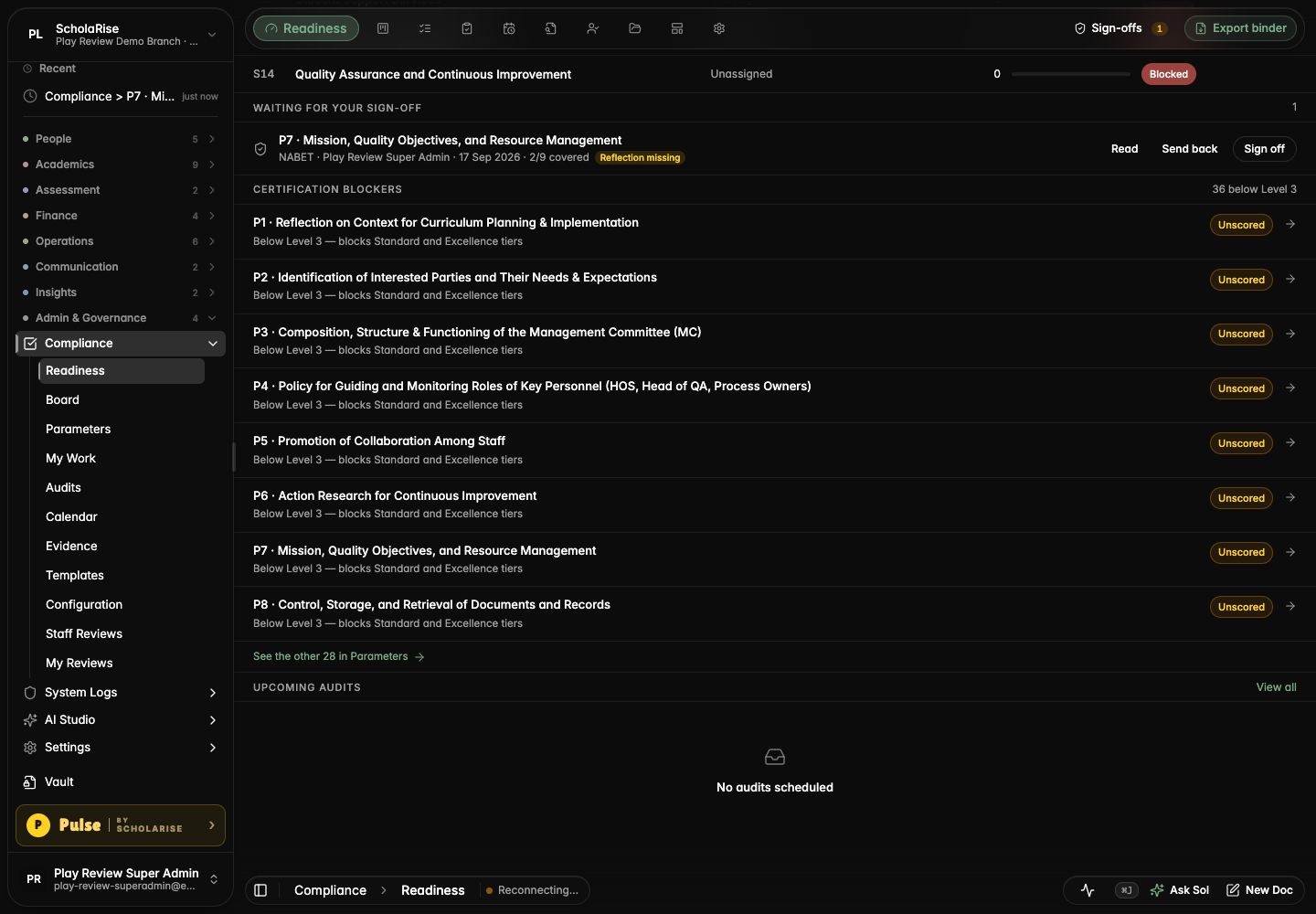
Compliance now opens to a home that fits your role: a board for the accreditation coordinator, a personal work list for process owners and deputies, and a readiness view with a sign-off queue for the principal. The principal can sign a parameter off or send it back from the parameter page, and each parameter shows the owner's self-reflection with a Fill in link.
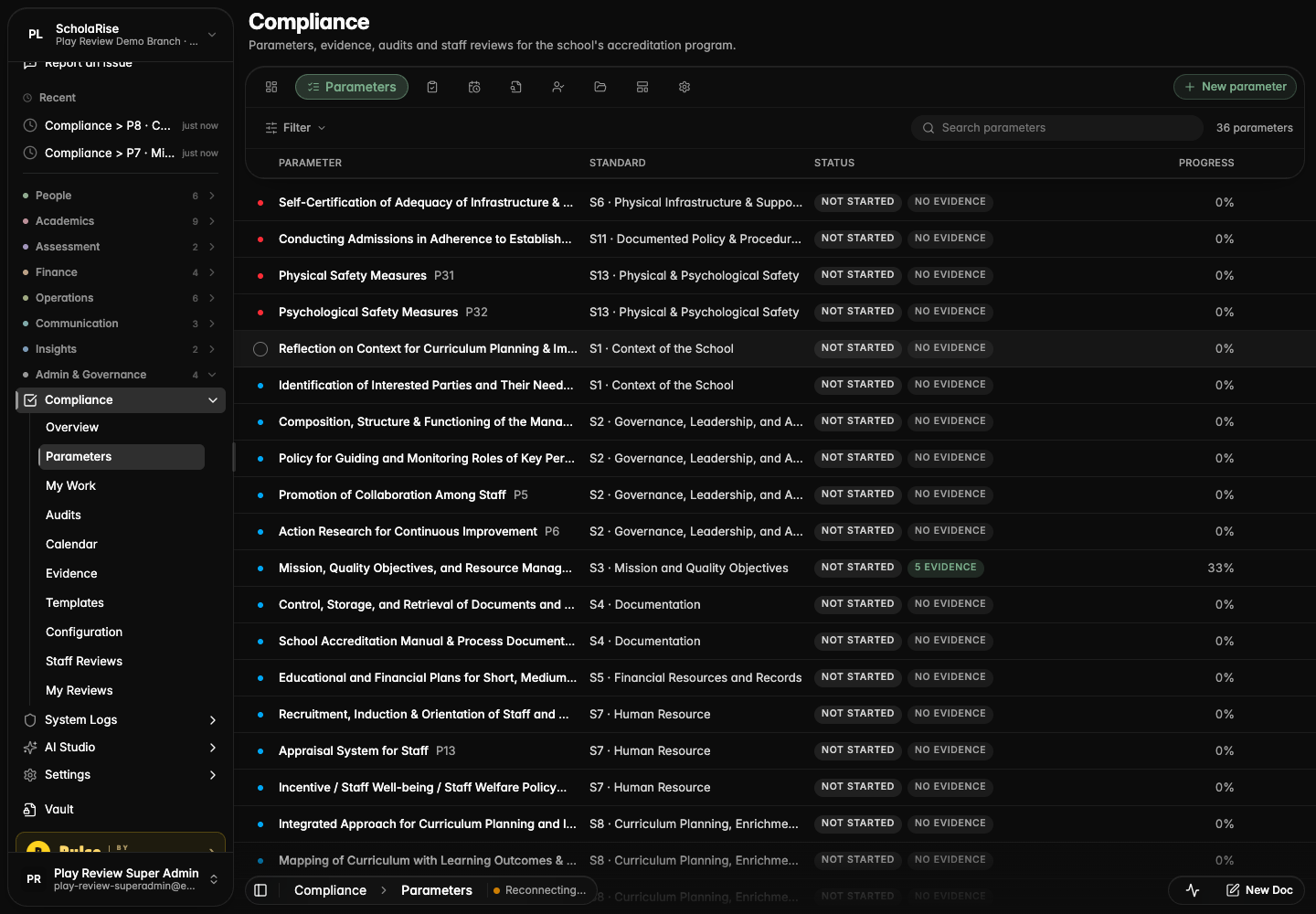
The coordinator's board: every standard with its owners, coverage and what is late
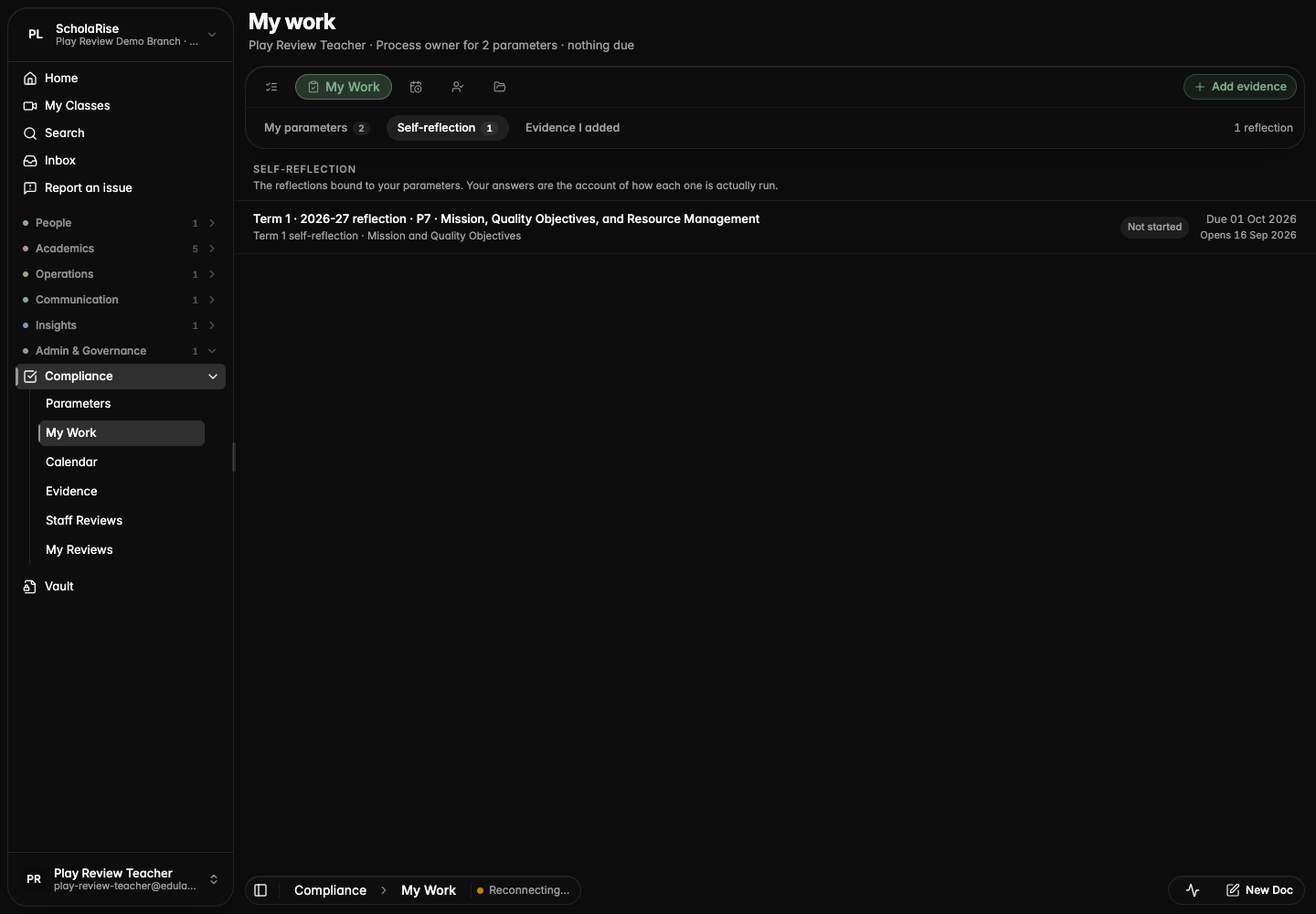
A process owner's My work: their parameters, what to do next and what is due
The principal's Readiness view with the sign-off queue
Seating coordinators and the principal in Settings
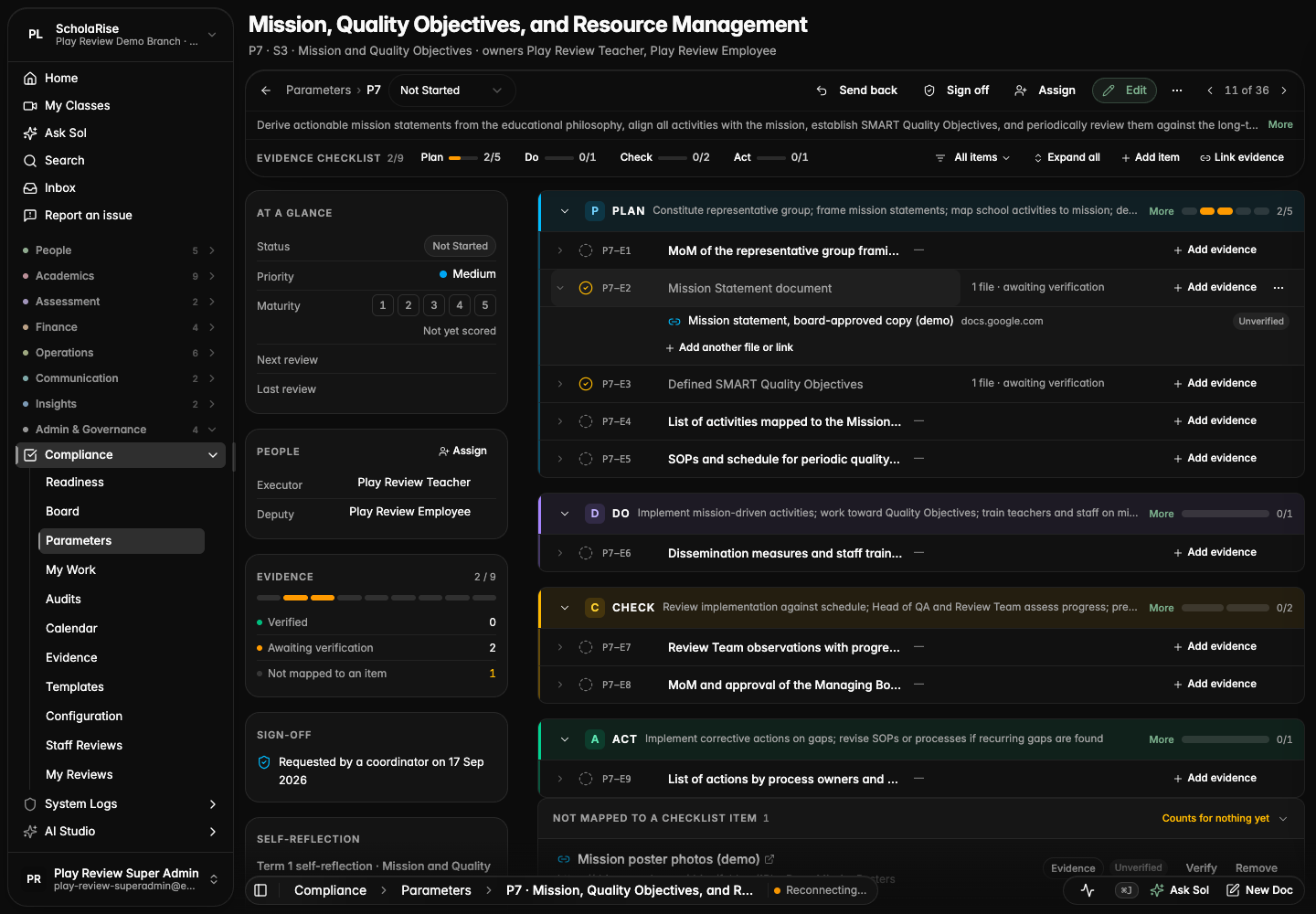
Sign off and Send back in the parameter page's action bar
The Sign-off and Self-reflection panels beside the checklist
An owner's reflections in My work
The sign-off queue showing whether the reflection is in
A parameter gets the whole page
Opening a compliance parameter now gives it the whole page, with its status, people, evidence coverage and documents beside the checklist. Previous and next move you through parameters without going back to the list, and Escape returns you to where you were.
A parameter opened as a full page, with the checklist beside its rail
Escape returns to the list exactly where you left it
The same page on a phone
Evidence lives on the checklist item it proves
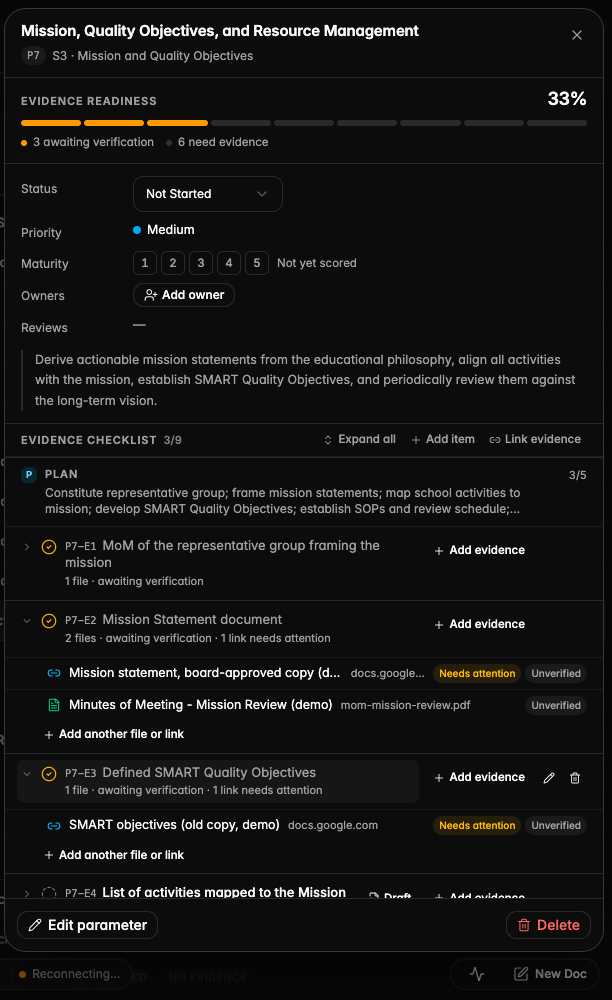
Each checklist item shows its own evidence files right under it, so you can open, verify or add a file without leaving the item. Adding evidence asks which item it is for and confirms before anything is removed, and linking a document as evidence works again after failing with a technical message.
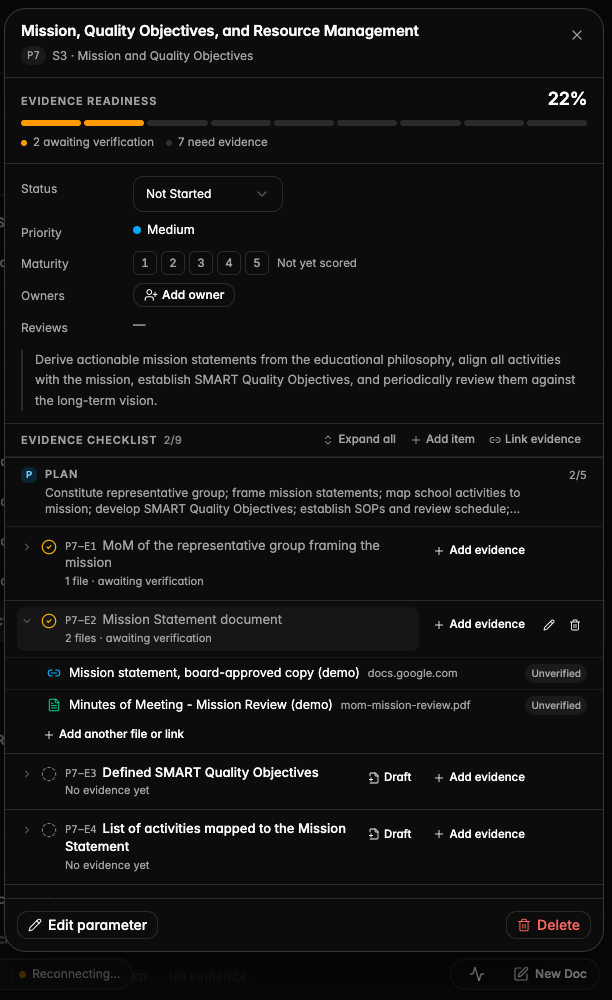
A checklist item expanded to show the two files filed under it
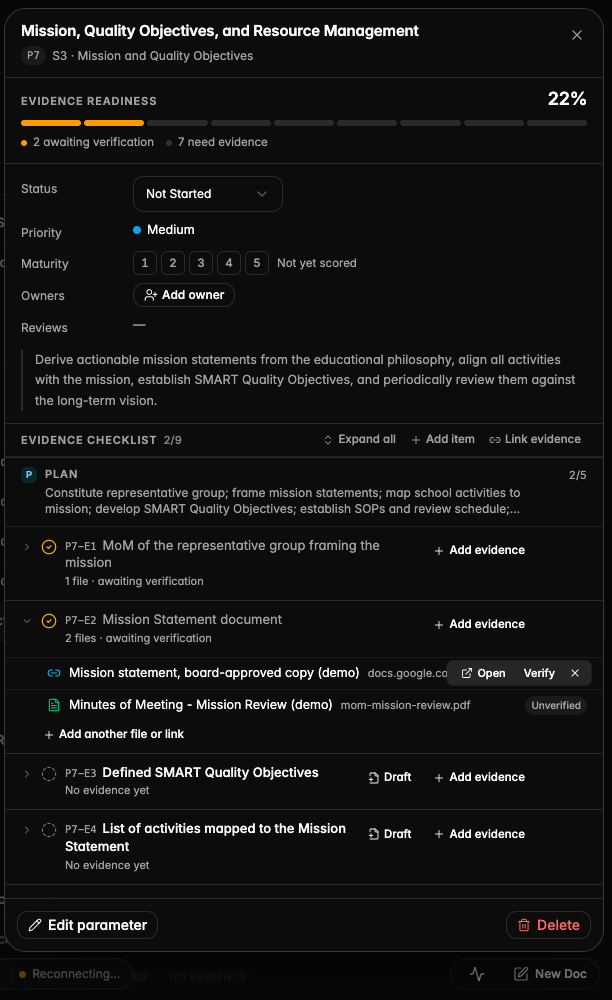
Hovering a file shows Open, Verify and Remove right on the row
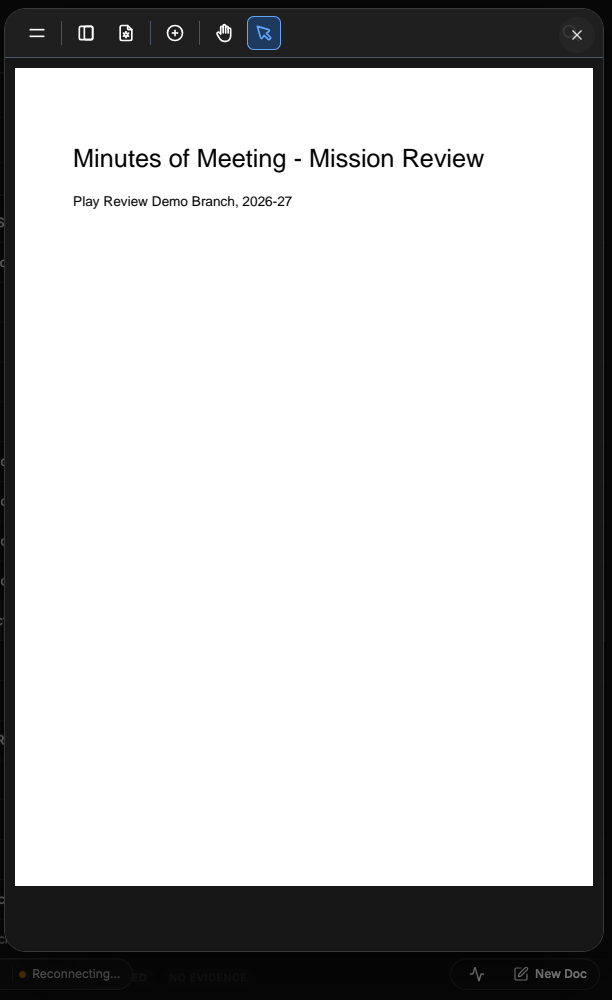
A Vault file opens in-app, above the parameter sheet
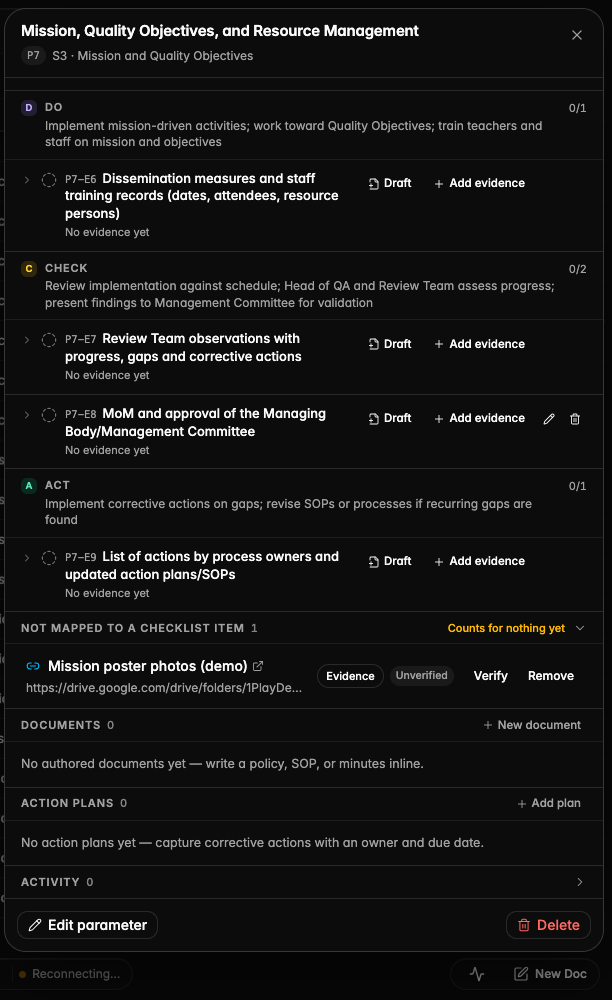
Files not mapped to any item are called out at the bottom until they are
Add evidence now asks which checklist item the document satisfies
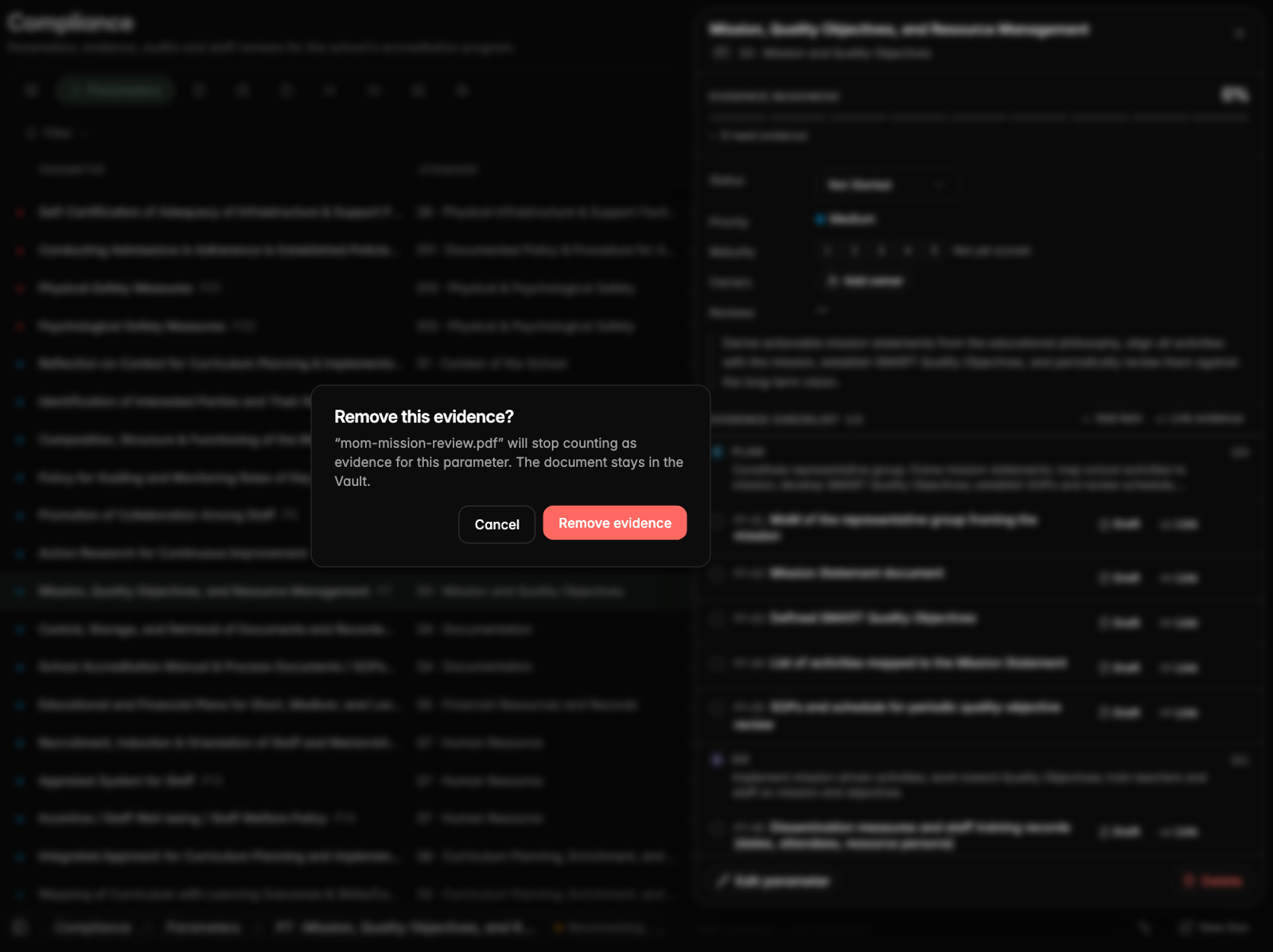
Removing evidence asks for confirmation first
A document linked as evidence from the Add evidence dialog
The parameter's checklist and readiness update as soon as evidence is linked
Broken evidence links are caught before an audit
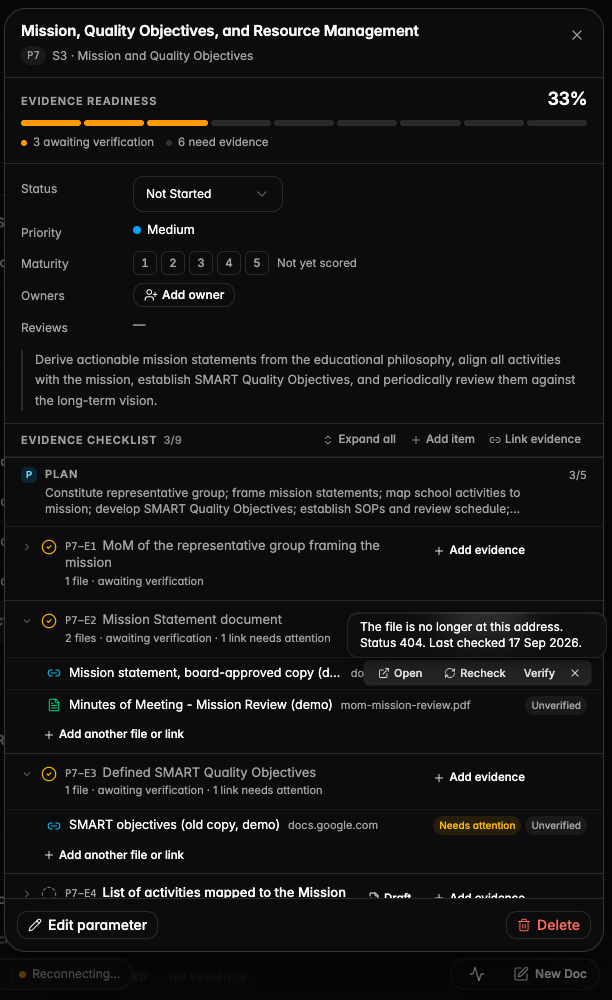
Compliance checks every external evidence link nightly and flags links that no longer open, on the item and on the file, with a Recheck action.
Checklist items whose external links no longer open are flagged on the item and on the file
Hovering the flag shows why the link failed and when it was last checked, with a Recheck action
Clearer errors and safer editing across Compliance
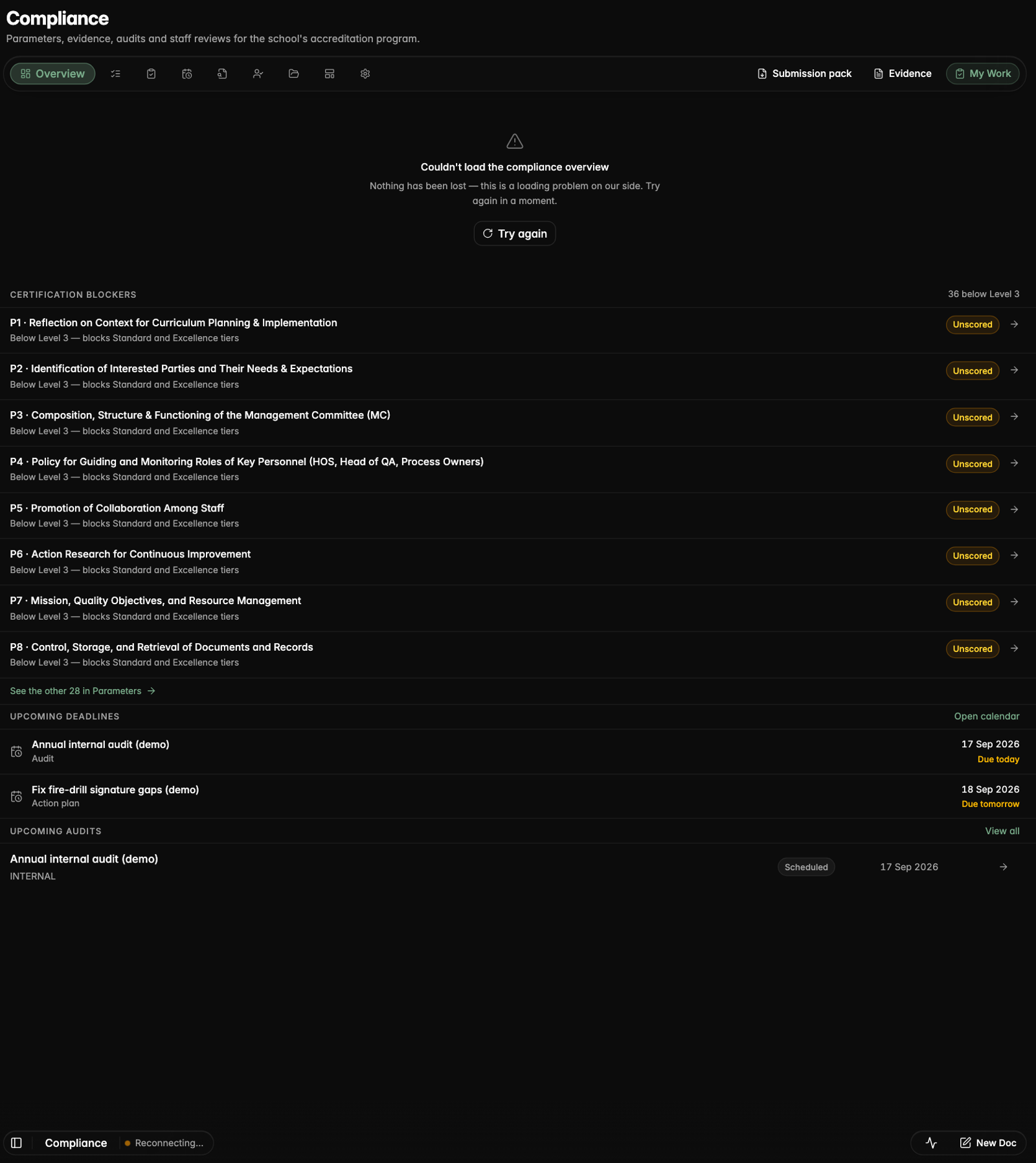
The overview and evidence list say plainly when something could not load, certification blockers open the parameter they refer to, unsaved templates and staff reviews ask before you leave, findings get a searchable parameter picker, and a review cannot be published until it is usable.
Certification blockers now open the parameter they refer to
A loading problem is shown as such, with a Try again button
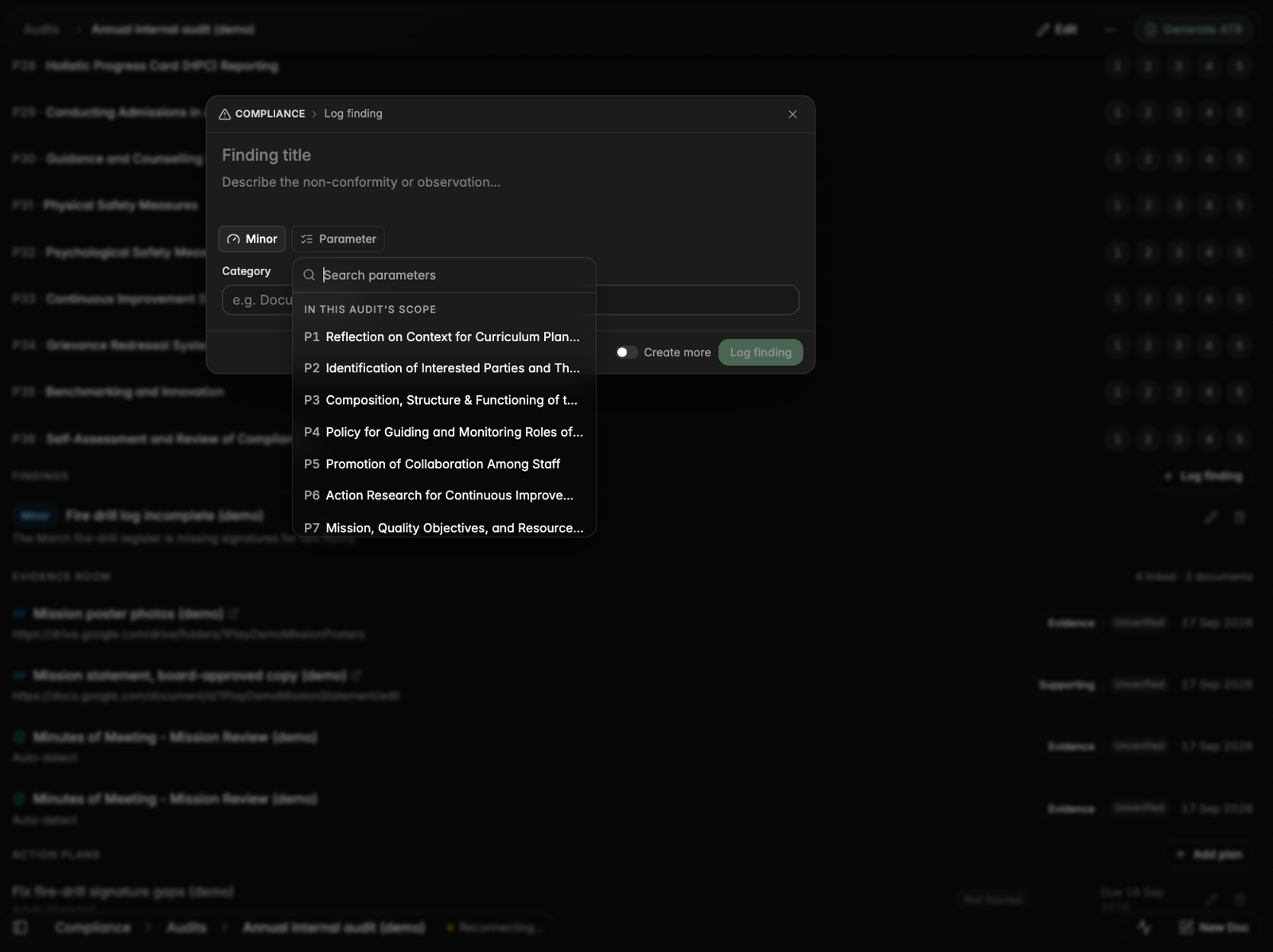
Logging a finding now has a searchable parameter list, with the audit's own parameters first
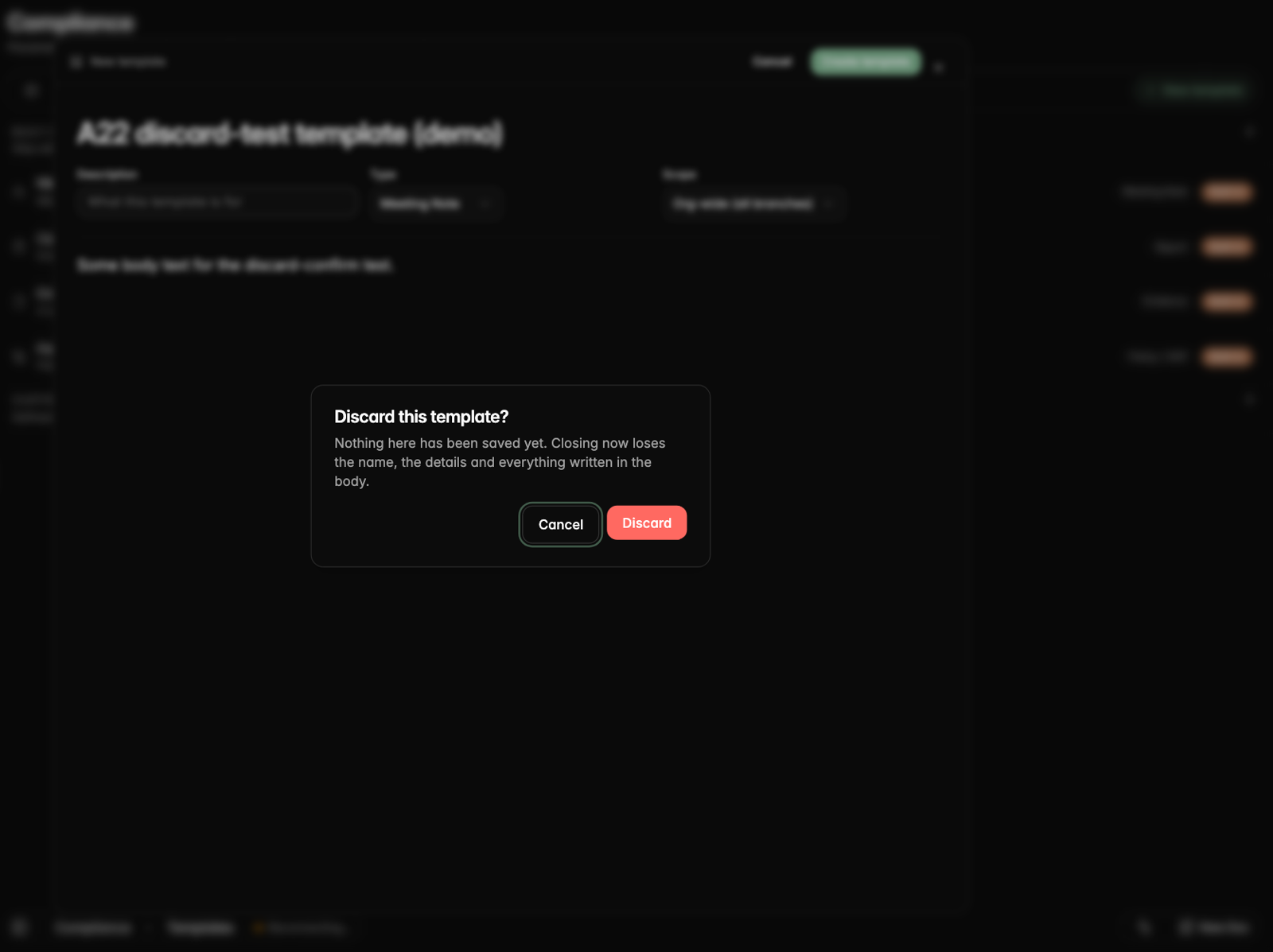
Closing an unsaved template asks before discarding it
The review builder warns before you leave with unsaved changes
On a phone, the builder says what is still needed before publishing
Sol writes drafts straight into your document
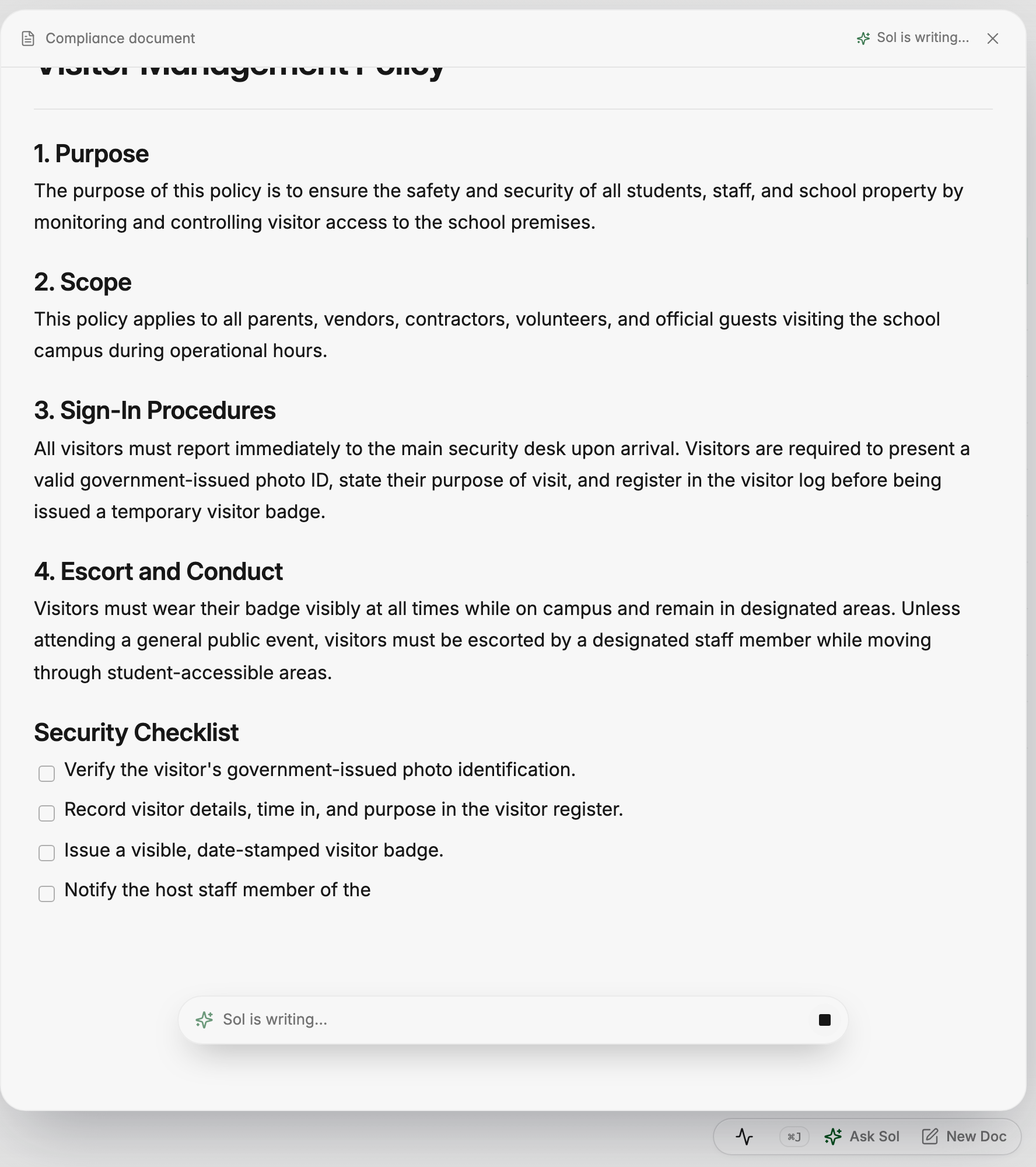
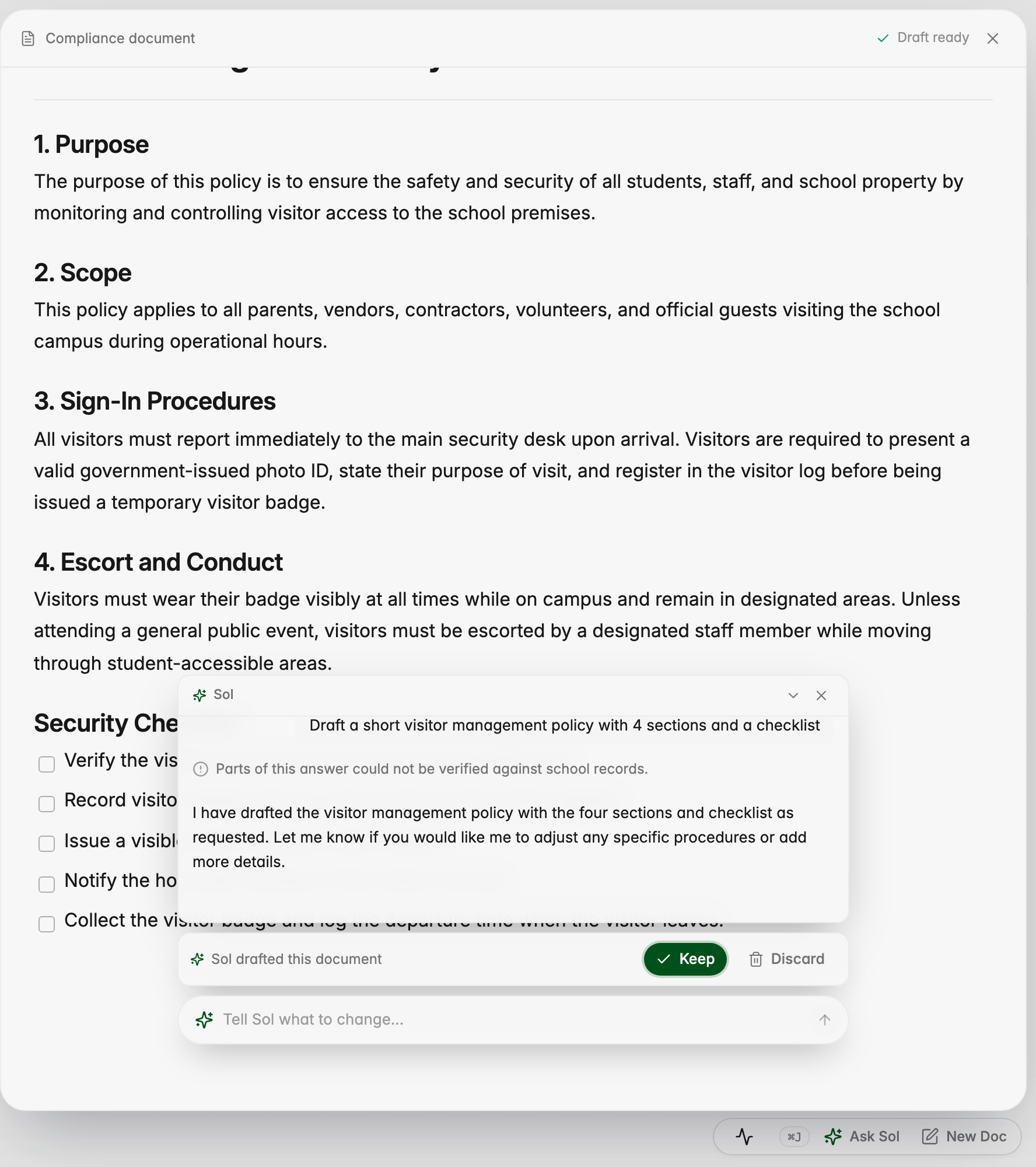
When you ask Sol to draft or edit a compliance document, the text writes itself into the page, and you choose Keep or Discard before anything is saved. Questions are answered beside the document without changing it.
Sol writing a visitor policy directly into the document
Keep or Discard the finished draft, or tell Sol what to change
Questions are answered beside the document without changing it
Ask Sol becomes a workspace
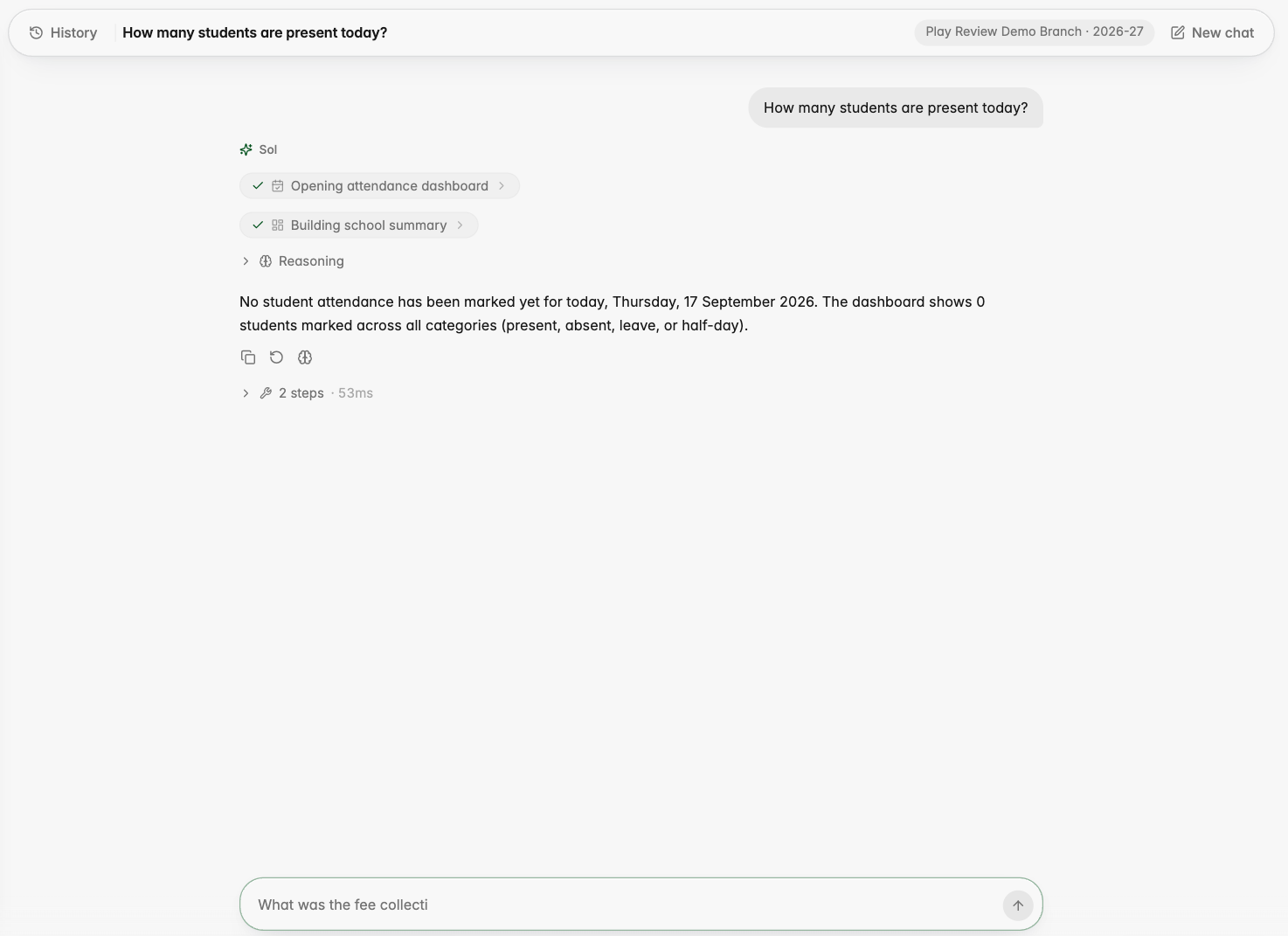
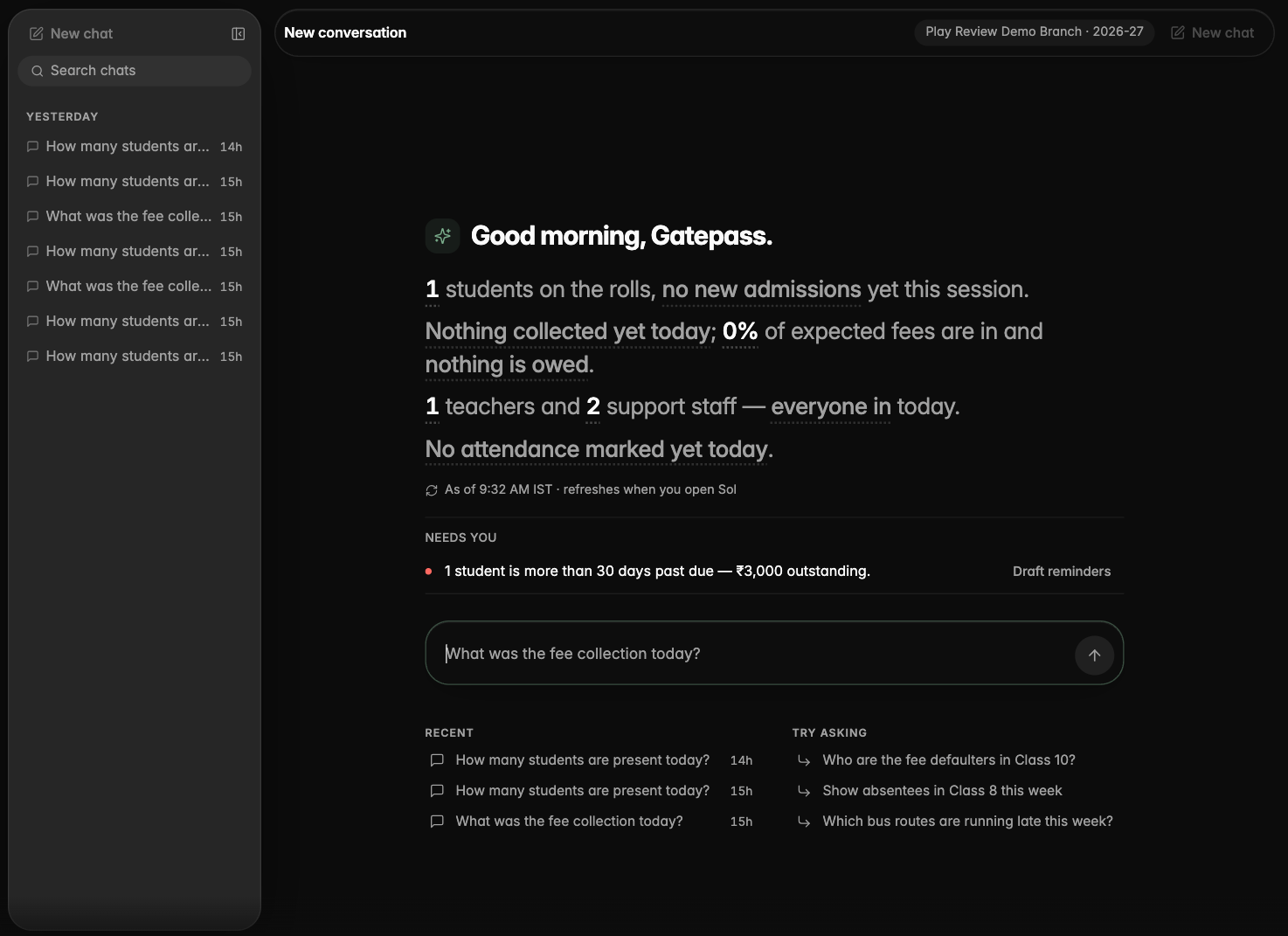
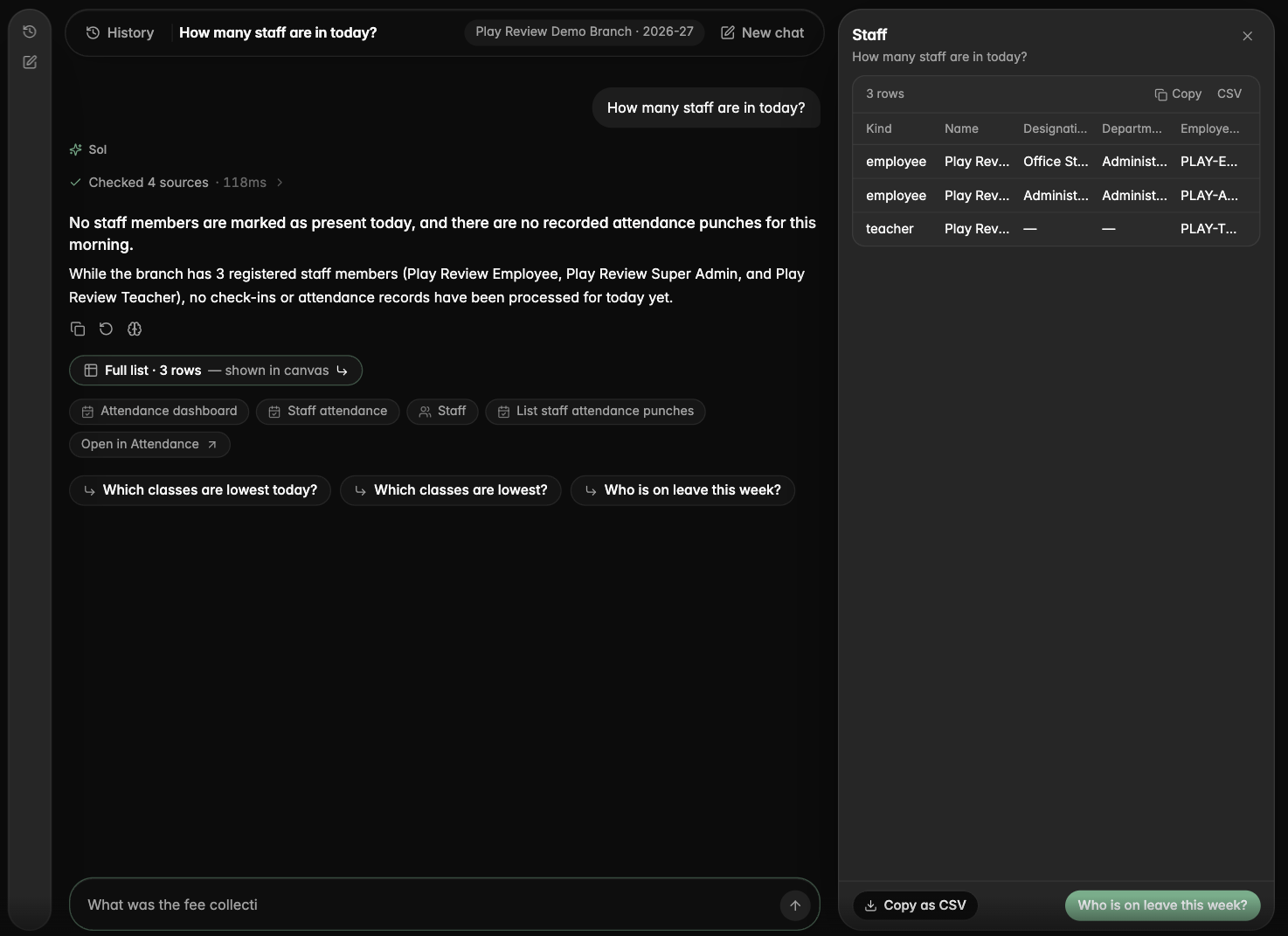
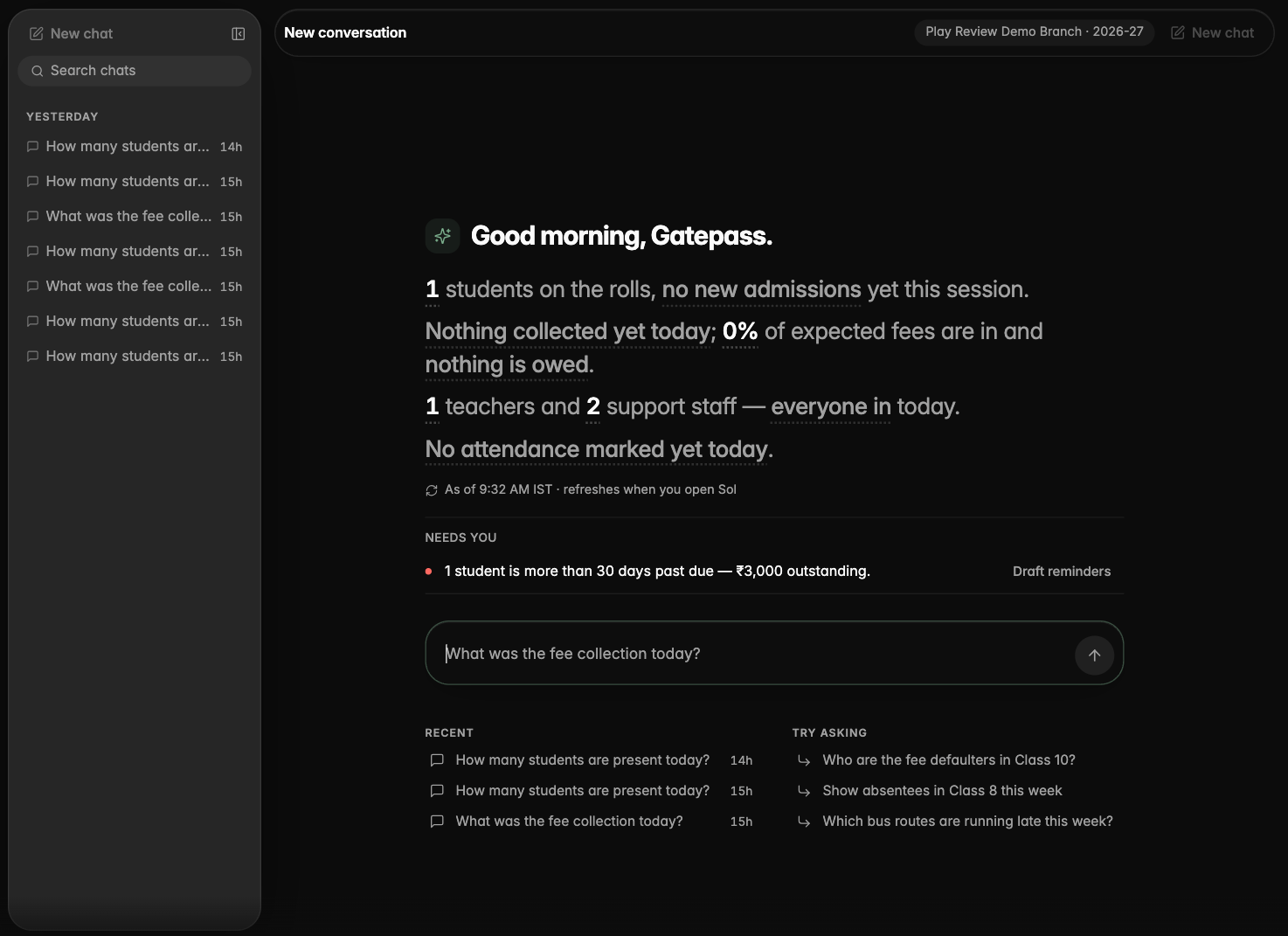
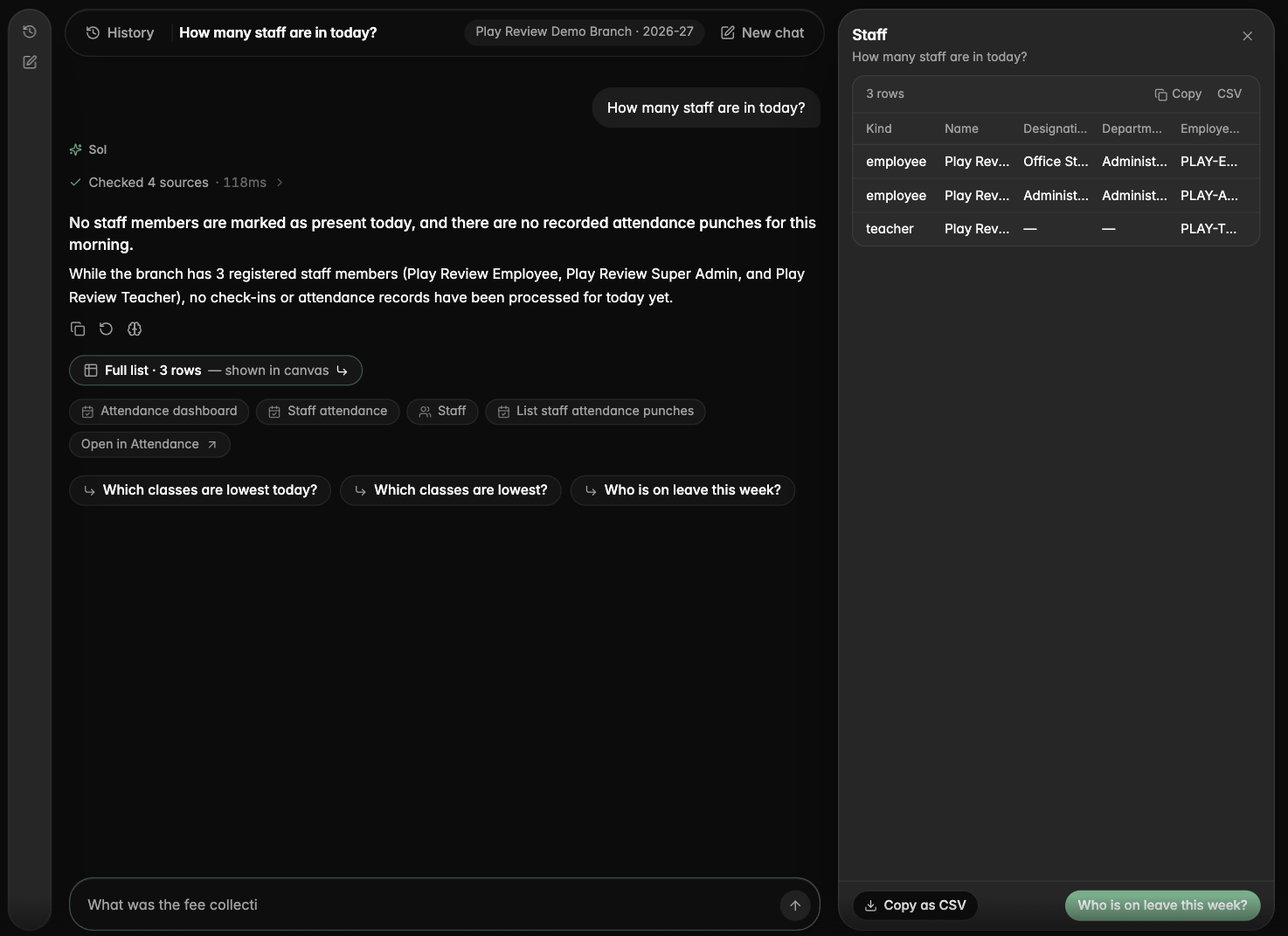
The Ask Sol page has a new look: your past conversations sit in a rail on the left, the day's brief and the box you type in sit at the top, and when an answer comes with a table it opens in a panel on the right with grouping, CSV copy and a one-click next step. Sol opens with a short brief of your school's day, and every figure in it is a question you can tap.
The redesigned Ask Sol page: the conversation scrolls under a floating bar and composer
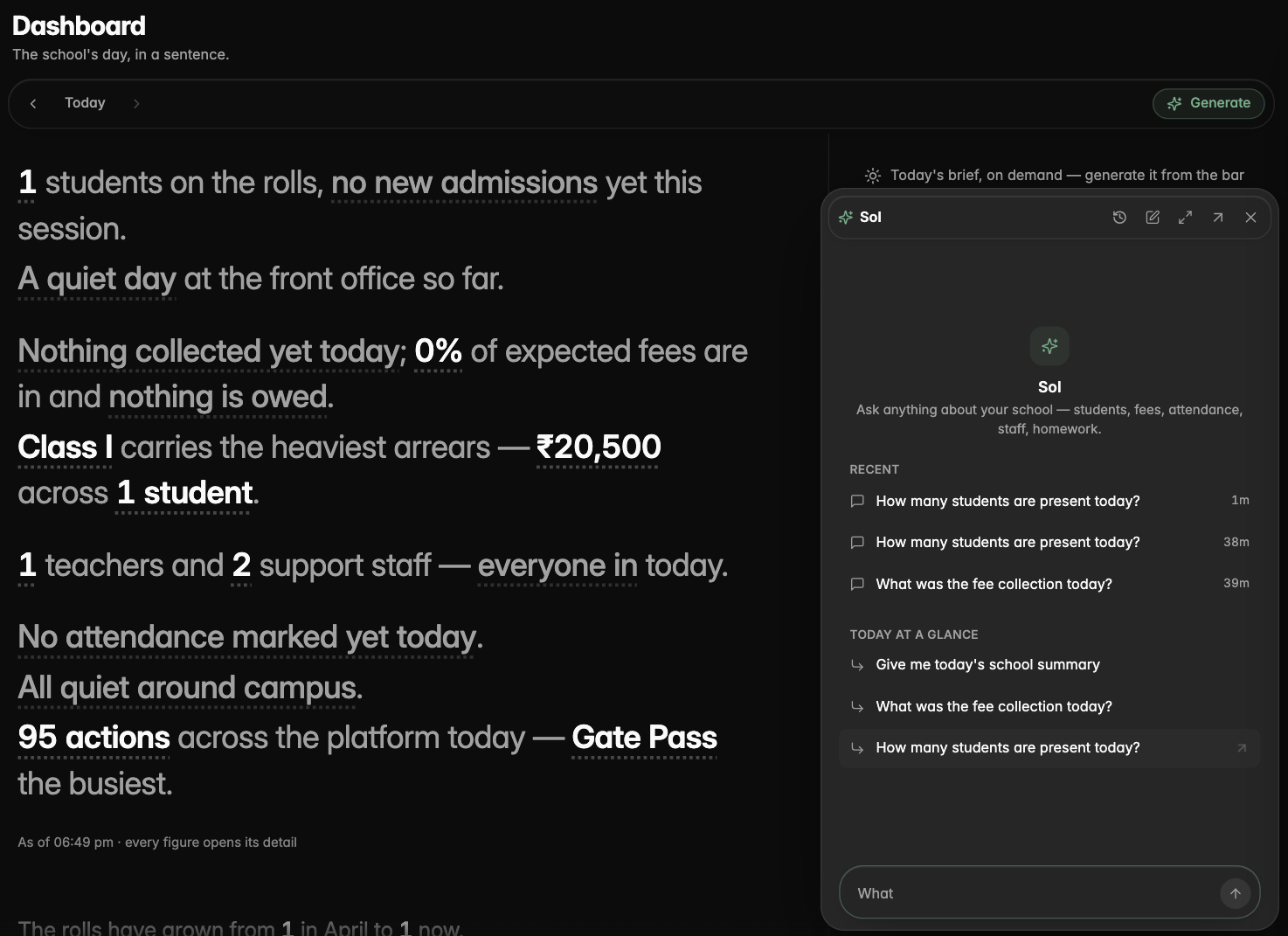
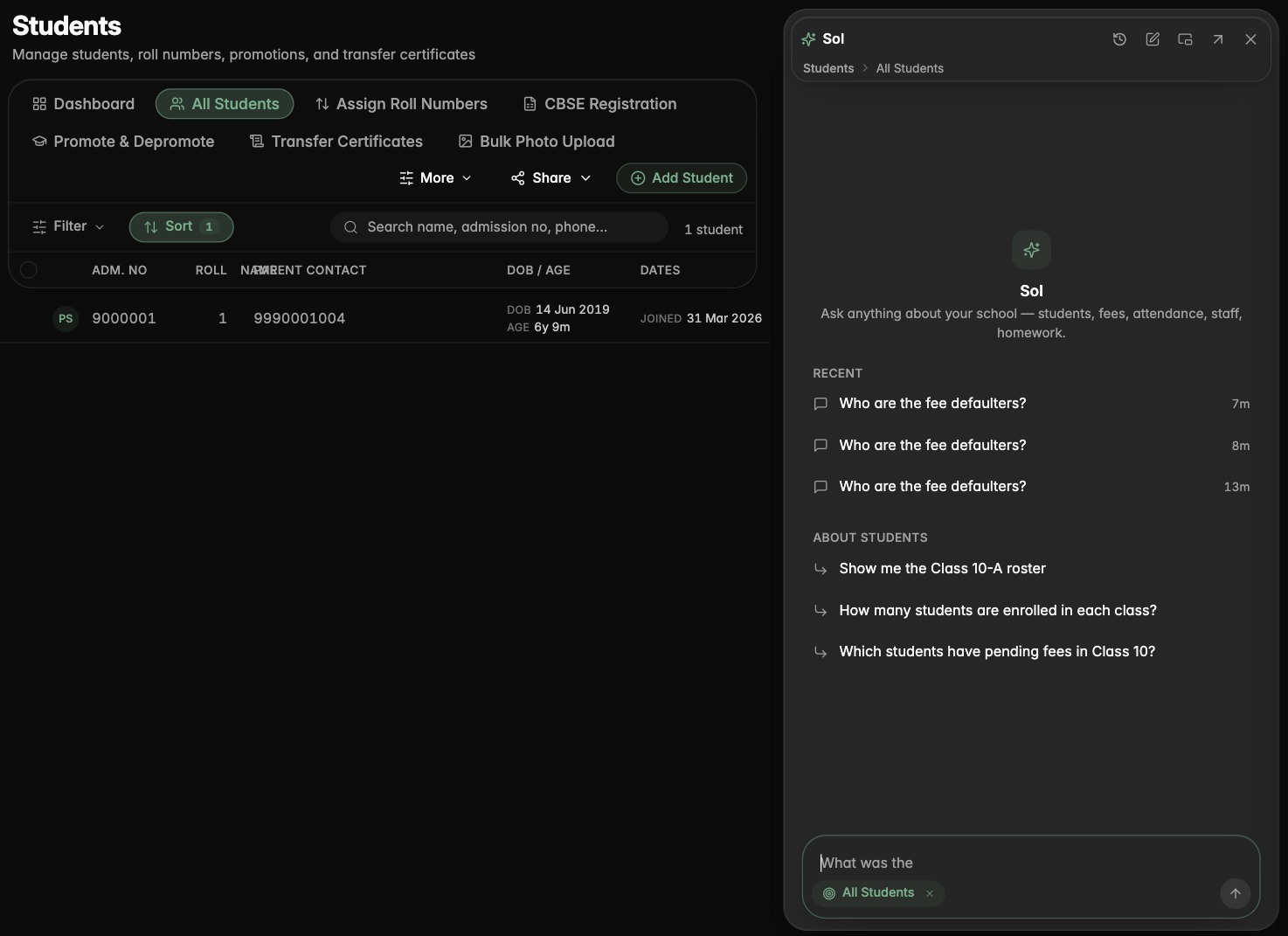
The quick-ask panel in dark mode, with recent conversations and suggestions for the current page
The fresh Ask Sol page with the history rail and the composer under the greeting
An answer whose table opened in the canvas on the right
Sol's opening brief with tappable figures and the Needs-you list
Sol sits beside any page and knows what you are looking at
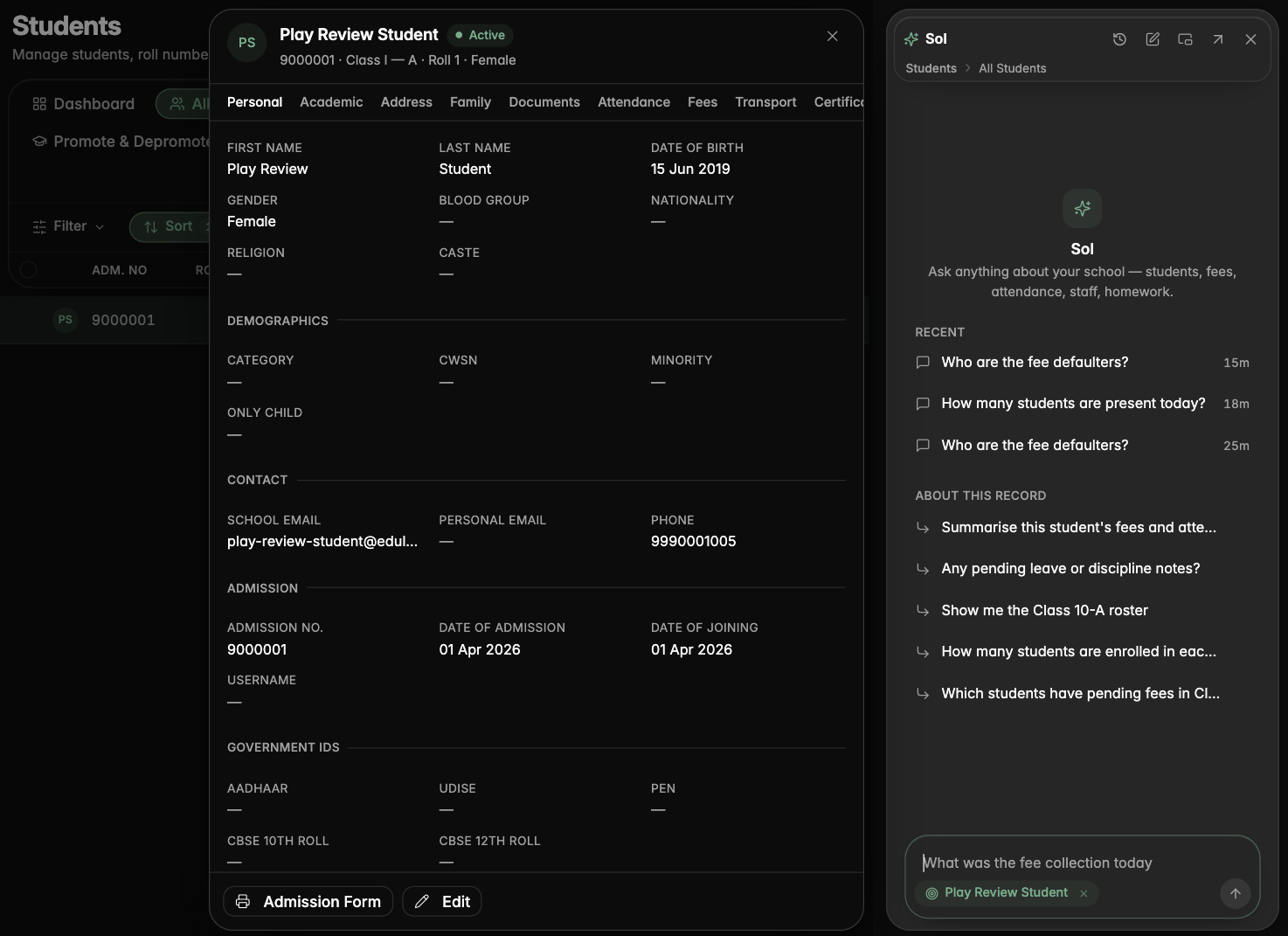
The quick-ask panel now sits beside the page instead of on top of it, stays open while you work, and knows which page or record you have open, so asking about "this student" or "this page" just works. Its panels match the rest of the app's look.
Sol docked beside the Students list, with suggestions about the page
A student open beside Sol, with the context chip naming that student
Answers that lead with the point
The steps Sol took fold into one line, the key sentence leads, and each answer offers the next questions you might ask, written for that answer.
An answer with its folded steps, source chips and follow-up questions
Guided walkthroughs across Inventory
Every Inventory page and form now has a guided walkthrough that explains each button and field, what it does and where it shows up elsewhere.
Parents & Students app
Gate passes in the parent app
Parents can ask for an early pickup or a late arrival for their child from the app, see the approved pass with its QR code, and cancel it if plans change.
Meetings from the parent app
Parents can ask for a meeting with a teacher or the principal from the app, pick times that suit them and show the pass at the gate. Teachers can answer meeting requests from their phone.
Examination
A CBSE switch for each branch
Branch settings have a CBSE school switch; report cards show the official CBSE logo for CBSE branches and leave it off for the rest.
Grades and the legend follow your grade scale
Report cards grade and print their legend from the grade scale set up for the current session and class, show each subject group's real maximum marks in the Grand Total column, and leave the grade blank until a subject has marks.
Report card layout fixes
Every branch's logo now prints, Class I and II subject cards no longer repeat a total grade under the assessment grades, the student detail pills are centred, and the page header and footer no longer repeat the word "Class" before the class name.
Book a demoA guided walkthroughWeb · iOS · AndroidAvailable across India
The next step
See ScholaRise in your school.
A real walkthrough with someone who actually runs a school — we'll map what fits your
campus today and what's worth phasing in over the next year.